

Let me start with something most “how to create a WordPress blog” guides will never tell you. The 15-minute tutorials you see on YouTube and Google’s first page are mostly written by affiliate marketers who have not run a serious blog in years. They push you toward whichever hosting affiliate pays the highest commission, skip the parts that matter for SEO, and never explain what actually happens after you hit publish.
I have been building blogs and ranking client sites since 2017. Across 500+ client projects I have spun up new WordPress blogs more times than I can count, and I have spent real money testing 20+ hosting providers with my own credit card. Hostinger is what I have used as the default for 25+ self-hosted projects, which is why I am going to walk you through exactly that setup in this guide.
This is not a 15-minute fluff piece. This is the full, no-fluff walkthrough of how to create a WordPress blog on self-hosted WordPress that ranks, loads fast, and does not break two months in. By the end you will have a live, indexable WordPress blog website, the right plugins installed, your SEO foundations in place, and a clear publishing plan.
What “Self-Hosted WordPress” Actually Means (And Why It Beats Everything Else)
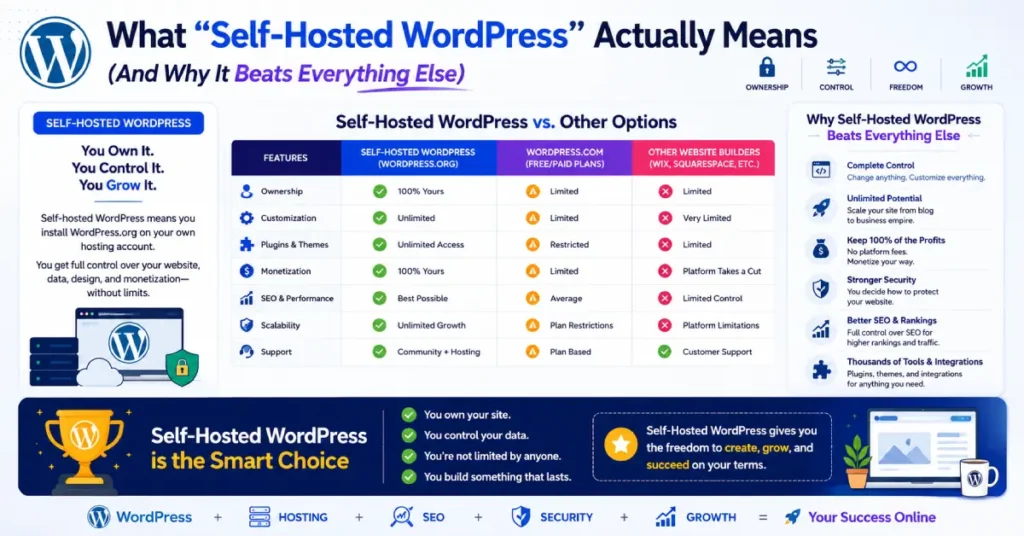
Self-hosted WordPress means you install the free WordPress.org software on hosting you control, instead of building on WordPress.com, Medium, Substack, Wix, or any platform that owns your content.
The distinction matters more than people realise. WordPress.com is a hosted service with restrictions on monetisation, plugins, themes, and what you can do with your own content. WordPress.org is the open-source CMS that powers over 43% of the web. When you learn how to start a WordPress blog the self-hosted way, you own everything: the domain, the database, the files, the email addresses, and every piece of revenue that flows in.
I had a Medium publication with 6,000+ followers get suspended in 2021 with no warning. Two years of content vanished. That was the moment I decided self-hosted WordPress was the only sane option for anyone serious about building an audience or income online.
Here is the short version of what self-hosted gets you that WordPress.com or any hosted platform does not.
| Feature | Self-Hosted WordPress | WordPress.com Free / Hosted Platforms |
|---|---|---|
| Full theme freedom | Yes, any of 12,000+ themes | Limited library, paid plan needed |
| All plugins (Rank Math, WPForms, etc.) | Yes, all 60,000+ | Only on Business plan and higher |
| Custom domain control | Yes, day one | Paid upgrade |
| Monetise with any ads or affiliates | Yes, no restrictions | Restricted or banned on free plans |
| Own your data and files | Yes, you control it | Platform owns the account |
| Average launch cost (year one) | $35 to $120 | $0 to $300 with limits |
If you are building a hobby diary you have no plans to grow, a hosted platform is fine. For anything resembling a real blog with a real future, you want self-hosted WordPress on proper hosting. That is what this guide covers.
What You Actually Need Before You Start a WordPress Blog
Before we get into the click-by-click steps, here is the honest list of what you need. Most tutorials make this sound dramatic. It is not.
You need a topic you can write about for at least 50 articles without running out of ideas. You need a domain name. You need a hosting account. You need an email address. You need somewhere between $40 and $120 for the first year if you are paying for hosting plus optional extras like a premium theme. That is the entire list.
You do not need coding skills. You do not need to be technical. You do not need to spend a week researching the perfect domain. If you can use Gmail, you can run a WordPress blog. The bigger barrier is almost always overthinking, not technical ability.
A note about the niche question, since I get it constantly. The “best” niche is one where you can publish 100+ articles without getting bored, where there is real search demand, and where readers eventually buy or click something. If you cannot honestly answer those three questions yet, that work matters more than the technical setup. I cover the niche question in depth in my how to start a blog guide, so I will not repeat it here.
How Much Does It Cost to Create a WordPress Blog in 2026?
The total cost to create a WordPress blog and run it for the first 12 months sits between $35 and $200 depending on the choices you make. A bare-bones self-hosted blog with Hostinger’s Premium plan, a free theme, and free plugins costs around $42 for the full first year, including a free domain. That is roughly the price of three Netflix subscriptions.
Here is the realistic cost table for May 2026, based on current Hostinger pricing I verified before publishing this guide.
| Cost Item | Free / Cheap Path | Recommended Path | Premium Path |
|---|---|---|---|
| Web hosting (first year, Hostinger) | $35.88 (Premium, 12 months) | $53.88 (Business, 12 months) | $119.88 (Cloud Startup) |
| Domain name | Free with hosting (year 1) | Free with hosting (year 1) | Free with hosting (year 1) |
| SSL certificate | Free (included) | Free (included) | Free (included) |
| WordPress software | Free | Free | Free |
| Theme | Free (Kadence, Astra free) | $59 to $99 (GeneratePress, Kadence Pro) | $129 to $299 (premium theme) |
| Essential plugins | Free (Rank Math, LiteSpeed, WPForms Lite) | Mostly free, $49 for one premium | $200+ in premium plugins |
| First year total | ~$36 | ~$110 to $160 | ~$320+ |
A few realities to keep in mind. Hostinger’s introductory pricing is for 12 to 48 months. After that, renewal jumps to $12.99/month for Premium and $18.99/month for Business. This is the part hosting articles love to bury. Lock in 48 months on signup if you can afford it. You save substantial money over four years, and that is exactly when your blog should be hitting its stride.
For a deeper comparison of providers and renewal rates, I have a full best WordPress hosting guide where I have benchmarked the major hosts using real money.
Why Hostinger Is My Default Recommendation for a New WordPress Blog
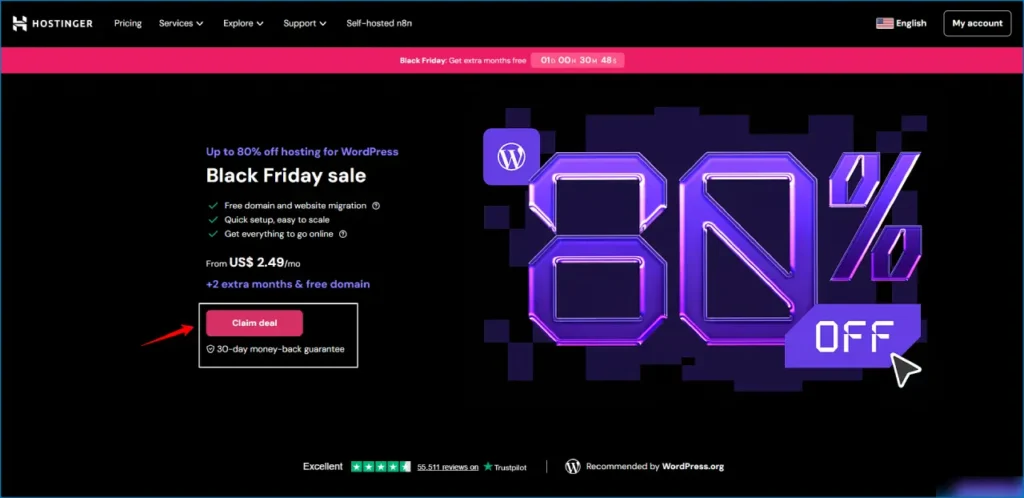
Real talk on hosting. There are dozens of hosts I could recommend. The reason I default to Hostinger when I help someone learn how to create a WordPress blog website is straightforward: it has the best ratio of price, speed, and ease of use for new bloggers right now, and I have used it on 25+ projects without a serious problem.
Specifically: Hostinger runs LiteSpeed servers (faster than the standard Apache stacks most cheap hosts use), includes free SSL and a free domain on its annual plans, has a clean dashboard called hPanel that beats traditional cPanel for beginners, and offers one-click WordPress install. Performance numbers from my own testing put Hostinger’s TTFB at around 223ms, which is faster than most hosts at three times the price.
The honest tradeoff is the renewal price jump I mentioned above. You also get fewer advanced features at the entry tier compared to managed WordPress hosts like Kinsta. For a first blog, those features do not matter. You are not running a Fortune 500 store.
If you want to research alternatives before you commit, my full best web hosting ranking covers Bluehost, SiteGround, DreamHost, GreenGeeks, and several others, with real testing data.
For Indian readers, I have a separate guide on the best web hosting in India where pricing in INR and UPI payments are factored in. Hostinger India remains the top pick there too.
Step 1: Choose Your Domain Name (Spend Less Time on This Than You Think)

Your domain name is the URL people type to reach your blog. Choose it well, but do not obsess over it for two weeks.
These are the rules I follow when helping clients pick a domain:
Keep it under 15 characters when possible. Short domains are easier to remember and easier to type on mobile. Use a .com extension if it is available. Skip hyphens, numbers, and creative spellings. They confuse people and make the domain look spammy. Match it loosely to your topic without locking yourself in (your-niche-blog.com is too restrictive; a brand-style domain ages better). Say the name out loud. If it is awkward to say, change it.
Do not let “perfect domain” be the reason you delay launching. The domain matters far less than the content. I have seen blogs with awful domain names rank top of Google because the content was excellent. I have seen “perfect” domain blogs die because the writer never published anything.
When you sign up for Hostinger’s Premium plan or higher, you get a free domain for the first year. That is the simplest path. If you want to register the domain separately or compare registrars, I have a guide on the best domain registrar in India that covers Hostinger, Namecheap, GoDaddy, BigRock, and a few others.
Step 2: Sign Up for Hostinger Hosting
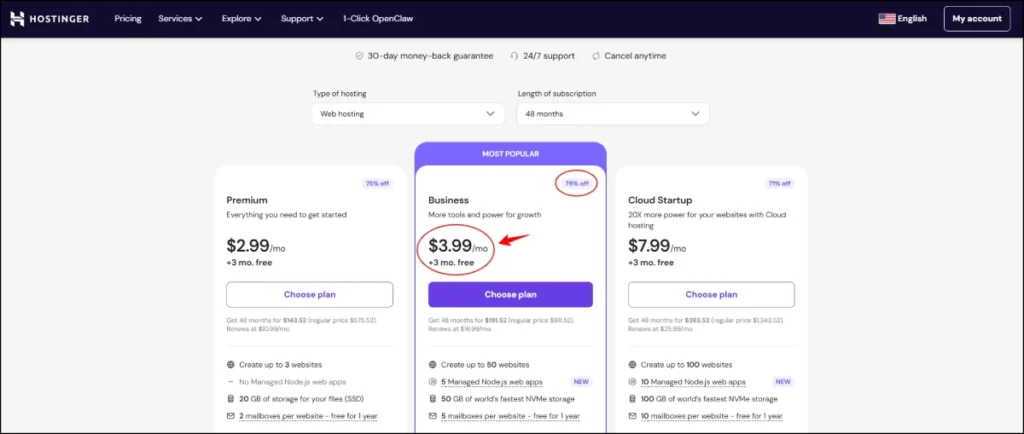
Head to Hostinger and click “Get Started” on the Premium Web Hosting plan or the WordPress Premium plan (they are functionally identical at this tier).
If you can afford it, lock in 48 months. The math is genuinely better. The introductory rate of $2.99/month over 48 months works out to about $144 for four years of hosting with a free domain for year one. The same plan at month-to-month renewal would cost over $600 across four years. Big difference.
During signup, Hostinger will offer you a few add-ons. Here is what I actually recommend:
Domain WHOIS privacy is worth getting. It hides your name, address, and email from the public WHOIS registry. Without it your contact details are searchable by anyone. Some registrars include this free; on hosting bundles it is sometimes a small extra fee. Pay it.
Skip the email marketing add-ons, AI tools, and “priority support” extras at signup. You can add them later if you need them. They are mostly upsells designed to bump the cart value.
After payment, Hostinger will send you a confirmation email and drop you into the hPanel dashboard. This is your control panel for everything: hosting, domain, email, SSL, WordPress install, files, databases. Bookmark it.
If you want to save a few dollars more, I keep an updated list of Hostinger coupon codes verified each month. The coupon “MANIPATHAK” gives an extra 7 to 10% off on top of the public price, which is usually the best stackable deal available.
Step 3: How to Install WordPress on Hostinger Website (One Click, Two Minutes)
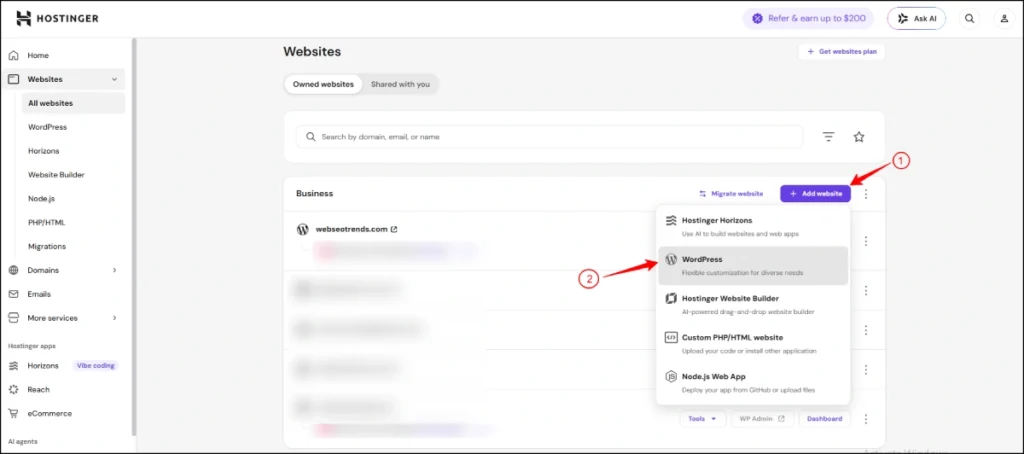
This is the part that scares most beginners and should not. Here is exactly how to install WordPress on Hostinger website hosting using their one-click installer. From inside hPanel:
Click “Set Up” on your hosting plan card. Choose “WordPress” when asked what you want to install. Enter your blog title (you can change this later, do not panic), an admin username, and a strong password. Skip the username “admin” since it is the first one brute-force bots try. Use something unique like your first name plus a number. Enter your admin email. Click “Install.”
Hostinger installs WordPress in roughly 90 seconds. You will see a confirmation, and the dashboard URL will be yourdomain.com/wp-admin. Save those login details in a password manager immediately. I have seen people forget their WordPress login on day one and need to reset it through email recovery. Avoid the headache.
A note on the WordPress version. Hostinger installs the latest stable WordPress release automatically. You do not need to worry about manually updating during install. After launch, WordPress will prompt you to update minor versions in your dashboard, and you should accept those updates within a week of release for security.
Step 4: Activate the Free SSL Certificate
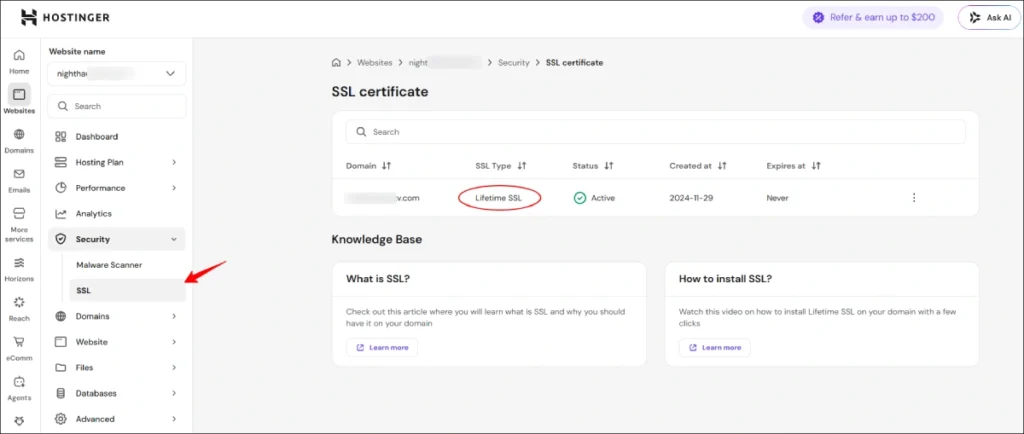
Before you do anything else with your new WordPress blog, turn on SSL. SSL adds the padlock icon next to your URL and changes the prefix from http:// to https://. Without it, browsers flag your site as “not secure” and Google penalises you on rankings.
In Hostinger’s hPanel, go to Websites → Manage → SSL. Click “Install SSL” and select “Free Let’s Encrypt SSL” if it is not already installed. It auto-activates within a few minutes. Then in WordPress, go to Settings → General and update both the WordPress Address and Site Address to use https:// instead of http://.
This is one of the most important small wins for SEO on a brand-new blog. Takes two minutes.
Step 5: Pick a Theme That Will Not Wreck Your Page Speed
Themes control how your blog looks. WordPress has thousands of free themes and thousands more paid ones. The truth is, the theme you choose matters far less for “looking professional” than it does for performance. Slow themes kill rankings and conversions.
My recommended themes for new bloggers right now, ranked roughly by what I use on real projects:
- Kadence (free or Pro) is my top pick for most new blogs. It is fast, the free version is genuinely useful, and the Pro upgrade adds advanced header/footer builders. The free starter templates cover most blog niches.
- GeneratePress is the best alternative if you want minimal, fast, developer-friendly. The Pro version is $59/year and unlocks everything most users need.
- Astra is good if you want to use Elementor or another page builder. The free version is fine; paid is roughly $59/year.
- Blocksy is a strong choice if you want a more design-forward feel. The free version is solid.
What I do not recommend: heavy multipurpose themes from ThemeForest, or page-builder-bloated themes like Divi for a beginner blog. They look impressive in demos and then load like a dying server when you check Core Web Vitals.
To install a theme: in WordPress dashboard, go to Appearance → Themes → Add New. Search for “Kadence” or your chosen theme. Click Install, then Activate. Most modern themes will walk you through a starter import wizard. Pick a starter template, customise the colours and logo, and move on. Do not spend three weeks on theme customisation before publishing any articles. I have watched people lose six months to “design polish” before writing a single post.
Step 6: Configure WordPress Settings Correctly (10 Minutes That Save Future Pain)
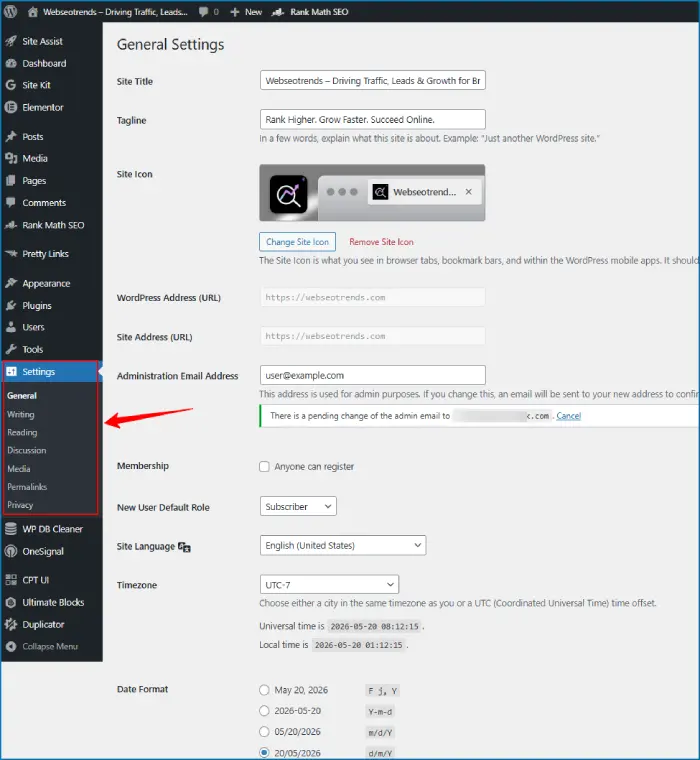
Most beginner guides skip this section. They should not, because messing up these settings later is a nightmare.
Inside WordPress dashboard, click through these sections and configure:
- Settings → General. Set your Site Title and Tagline. Set your timezone to match your actual location. Set the date format to something readable.
- Settings → Reading. Decide whether your homepage shows your latest posts (default for blogs) or a static page. For most blogs the default “Your latest posts” works.
- Settings → Permalinks. Change this from “Plain” to “Post name”. This is the most important setting on this page. Your URL structure should be yourdomain.com/post-title/ not yourdomain.com/?p=123. Post name is best for SEO. Trust me on this. Changing this later breaks every link you have ever built.
- Settings → Discussion. Decide whether you want comments enabled. I leave them on for most blogs but turn off “Allow link notifications from other blogs (pingbacks and trackbacks)” because they generate spam.
- Users → Profile. Set your display name to something other than your admin username. Brute-force login bots scrape WordPress sites looking for usernames in the page source. Having a different display name from your login adds a small extra layer of security.
- Settings → Privacy. Generate a privacy policy page from the template. You can edit it later. You legally need one in most jurisdictions.
Step 7: Install the Essential Plugins (Less Is More)
Plugins are how WordPress extends itself. There is a plugin for nearly anything. The mistake new bloggers make is installing 30+ plugins on day one, which slows the site to a crawl and creates conflicts.
Here is the field-tested set of plugins I install on every new blog. Nothing more, nothing less, until you have a specific need.
- Rank Math SEO. My go-to over Yoast for new blogs. Free version handles on-page SEO, schema markup, sitemap generation, and Search Console integration. Cleaner interface than Yoast.
- LiteSpeed Cache. If you are on Hostinger (LiteSpeed servers), this is the right caching plugin. It is free and pairs natively with Hostinger’s infrastructure. If you ever move to a non-LiteSpeed host later, switch to WP Rocket (paid) or W3 Total Cache (free).
- WPForms Lite. Free contact form builder. Every blog needs a working contact form. WPForms Lite handles that.
- UpdraftPlus. Free backup plugin. You configure it once to back up to Google Drive, Dropbox, or OneDrive weekly. If your site ever crashes, gets hacked, or you fat-finger a database query, this is what saves you. I have used it to restore client sites at least 12 times over the years.
- Site Kit by Google. Connects WordPress to Google Analytics 4, Search Console, and PageSpeed Insights directly from the dashboard. Free. Set this up after launch so you start tracking data from day one.
- Wordfence Security (free). Basic firewall and login protection. Free version is sufficient for new blogs. Once you start getting real traffic, the paid version is worth considering.
That is six plugins. That is enough for the first three months. Add more only when you hit a specific problem none of these solve.
If you want a deeper dive into SEO plugins specifically, I covered the SEO tools I actually use in my best SEO tools guide, and I have a separate post on affordable SEO tools for budget-conscious bloggers.
Step 8: Create Your Core Pages
Before you publish your first blog post, you want at least four pages live. These are your “static” content that rarely changes but builds trust and meets legal requirements.
- About page. Tell the reader who you are, why you started this blog, and what they will learn here. Include a real photo. People trust faces. This page also helps Google understand who is behind the content, which feeds EEAT signals (Experience, Expertise, Authoritativeness, Trustworthiness).
- Contact page. Drop in a WPForms contact form and an email address. Make it easy for readers, sponsors, and journalists to reach you.
- Privacy Policy page. Already generated in Step 6. Edit any placeholders with your real business info.
- Disclosure / Disclaimer page. If you plan to use affiliate links or sponsored content, this page is legally required in most countries. Templates are easy to find or generate from a free legal tool.
To create a page: WordPress dashboard → Pages → Add New. Write the title, fill in the content, click Publish. To make it appear in your navigation, go to Appearance → Menus and add the page to your primary menu.
Step 9: Write and Publish Your First Blog Post
This is the moment you have been working toward. Posts → Add New. Give it a title, write your content in the block editor, add a featured image, choose a category, and hit Publish.
A few real lessons before you publish:
Do not publish your first post until you have written at least three. The first post you write will almost certainly be the worst. Write three, then go back and improve the first one before launching. This single habit fixes 90% of the cringe people feel when they look at their early posts.
Target one specific keyword per post. Use a keyword tool (free options like Google’s autocomplete plus Search Console work for the first 20 posts) to find a phrase real people search for. Include the keyword in the title, the first paragraph, at least one H2 subheading, and the URL slug. Do not stuff it. Three to five natural placements is enough.
Use H2 and H3 headings to break up the article. Walls of text kill mobile readability. The default heading hierarchy is H1 for the post title (handled automatically), H2 for major sections, H3 for sub-sections.
Add a featured image. Every post needs one. Free stock photos from Unsplash or Pexels work. Generate your own with Canva for a more branded feel.
Set the URL slug to be short and keyword-focused. WordPress defaults the slug to the full title. Edit it down. For a post titled “How to Create a WordPress Blog in 2026: The Honest Guide From a Working SEO Expert,” the slug should be /how-to-create-a-wordpress-blog/, not the full sentence.
Hit Publish.
Your first post is live. Open the post in a private browser tab to see how it actually looks to a reader. Fix anything that breaks.
Step 10: Submit Your Sitemap to Google Search Console
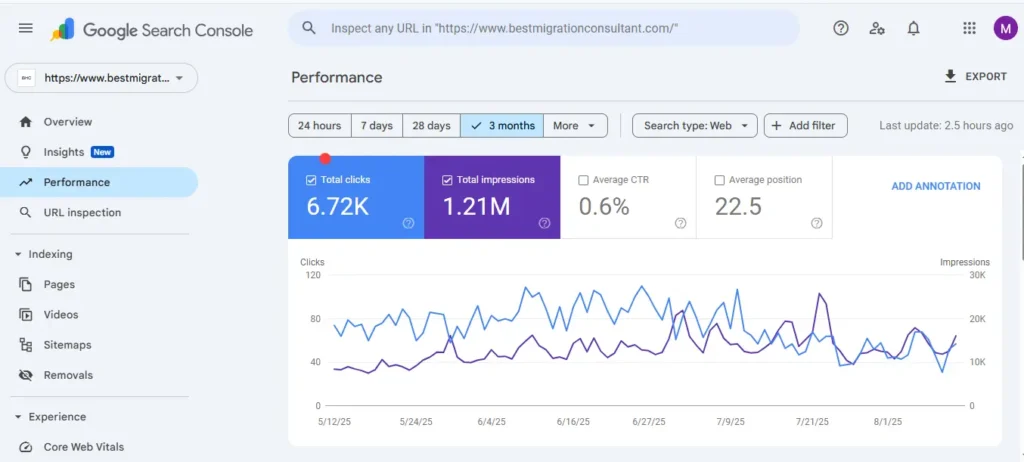
This is the step new bloggers almost always skip, and it costs them three months of traffic.
A sitemap is a list of all your blog’s pages and posts in a format Google can read. Rank Math generates one automatically at yourdomain.com/sitemap_index.xml.
To submit it: Go to search.google.com/search-console. Add your blog as a property. Verify ownership (Site Kit by Google handles this for you in two clicks). Once verified, click Sitemaps in the left menu and paste in your sitemap URL. Click Submit.
Google now knows your blog exists. Without this step, you are waiting for Google to discover you through external links, which can take months. This step takes five minutes and dramatically speeds up indexing.
I have an SEO services for WordPress breakdown that goes much deeper into what to do once you are indexed. But Search Console submission is the non-negotiable first step.
How to Edit Your WordPress Website (The Stuff Nobody Explains)
Most “how to create a WordPress blog” tutorials end at publish. Then the reader stares at the dashboard wondering how to edit website wordpress content, how to edit a website on wordpress without breaking it, and how to develop wordpress website features beyond the defaults. Here is the practical answer.
To edit your WordPress website, you mostly work in three places:
- Posts and Pages. Open the post or page, edit in the block editor, click Update. The block editor (also called Gutenberg) is the default. You drag in blocks for paragraphs, images, headings, lists, tables, buttons. It takes about an hour of poking around to feel comfortable. Tutorials abound on YouTube if you get stuck.
- Appearance → Customise (or Site Editor for block themes). Controls your site’s colours, fonts, header, footer, sidebar, logo, and global design settings. Most theme settings live here.
- Appearance → Widgets and Menus. Widgets manage what shows in your sidebar and footer. Menus manage your top navigation. Drag-and-drop interface for both.
To change the title of your blog: Settings → General → Site Title.
To change the URL of a post: open the post, click on the URL slug field in the right sidebar, edit it. WARNING: changing a URL after the post has been indexed by Google requires a 301 redirect or you lose all the SEO equity. Rank Math has a built-in redirect manager that handles this in one click.
To add a new menu item: Appearance → Menus → drag the page or post into the menu structure → Save.
To change your blog’s footer credit (the “Powered by WordPress” line): depends on the theme. Most modern themes have a footer setting in Customise.
If you ever break something visually, theme switching back to the default Twenty Twenty-Four theme isolates whether the problem is your theme or your content. Useful for troubleshooting.
How to Speed Up a WordPress Website
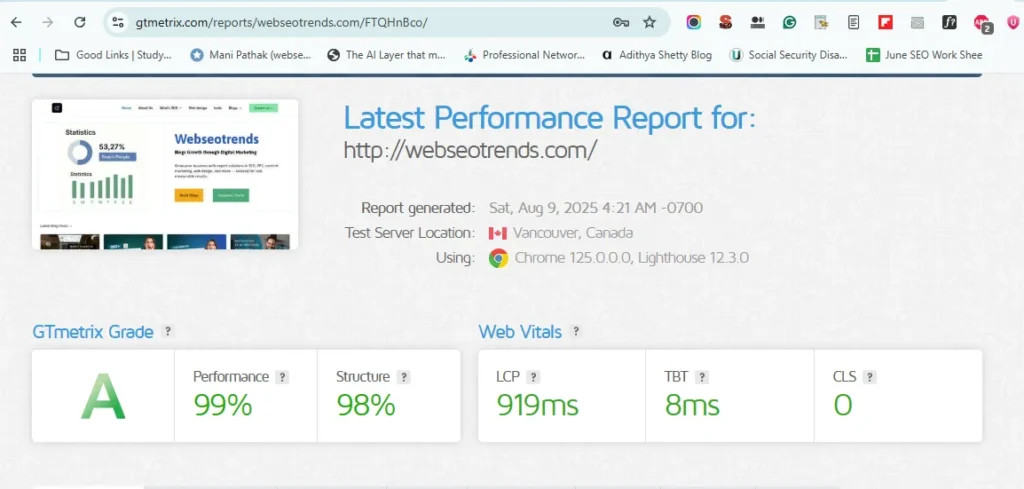
Page speed affects rankings, conversions, and bounce rate. Google’s Core Web Vitals (LCP, INP, CLS) are explicit ranking factors as of 2026. A slow WordPress blog will not rank, regardless of how good the content is. Learning how to speed up a wordpress website is one of the highest-leverage things you can do in your first month.
The biggest wins for speeding up a WordPress website, ranked by impact:
- Use LiteSpeed Cache (or WP Rocket) properly configured. Enable page caching, browser caching, GZIP compression, and image lazy loading. This single plugin properly configured can shave 60% off your load time.
- Compress and resize images before upload. Use a tool like ShortPixel or Imagify to compress images on upload. Or compress them externally with Squoosh.app before uploading. A 2MB image is unforgivable in 2026. Aim for under 200KB per image.
- Choose a lightweight theme. As covered in Step 5. Slow themes are unfixable.
- Limit your plugins. Each active plugin adds queries and load. If a plugin is not actively used, deactivate and delete it.
- Use a CDN. Cloudflare’s free plan adds a CDN in front of your site. Hostinger integrates Cloudflare natively. This makes your site load fast for visitors in other countries.
- Run PageSpeed Insights monthly. Go to pagespeed.web.dev, paste your homepage URL, and see what is slowing you down. Fix the top three issues each time.
A target to aim for: under 2 seconds load time on mobile, LCP under 2.5 seconds, INP under 200 ms, CLS under 0.1. These are Google’s “good” thresholds.
How to Backup Website WordPress Files (Do This Before You Think You Need To)
Knowing how to backup website wordpress files is one of those skills you ignore until disaster hits. In 2021, a client’s booking site went down on a Friday evening because they had updated a plugin without a backup, and the update broke their database. They lost $1,800 in weekend bookings and spent the entire next week rebuilding from a six-month-old export. Painful and avoidable.
UpdraftPlus is the free plugin I recommend. Install it. Go to Settings → UpdraftPlus Backups → Settings. Set a backup schedule (weekly is fine for new blogs publishing weekly, daily if you publish daily). Connect a remote storage destination (Google Drive is the easiest free option). Save. Run one manual backup right now so you know the system works.
Hostinger also has automatic backups built into the higher-tier plans, which is a nice belt-and-braces approach. Use both. They cost nothing extra and they save you in disasters.
How to Check Website Traffic WordPress: The Free Tools That Cover 95%
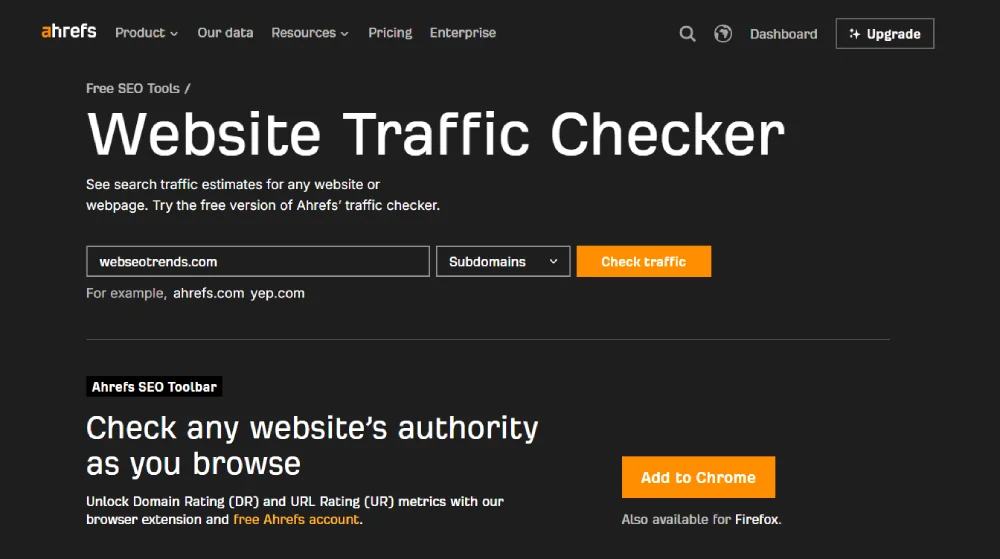
If you want to know how to check website traffic wordpress sites generate, three free tools cover 95% of what new bloggers need.
- Google Search Console. Shows you which queries people search to find your blog, your average ranking position, click-through rate, and which pages get clicks. Free. This is the most important traffic tool for SEO.
- Google Analytics 4. Shows you how many visitors you get, where they come from (organic, social, direct, referral), how long they stay, and what pages they view. Free. Site Kit by Google connects this to your WordPress dashboard.
- Site Kit by Google. As covered, pulls Search Console, Analytics, and PageSpeed data into one WordPress dashboard. Saves you switching between three tabs.
I tell every new blogger: check Search Console once a week, check Analytics maybe once a month. Obsessing over daily traffic spikes is a productivity killer in the first six months. Your first 100 visits will feel like a milestone. So will your first 1,000. Stay focused on publishing.
How to Add SEO Keywords in WordPress Website Content
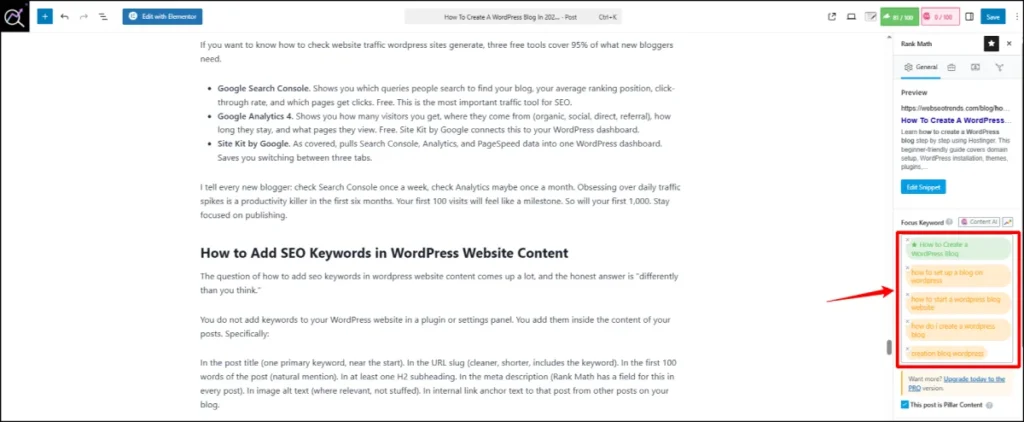
The question of how to add seo keywords in wordpress website content comes up a lot, and the honest answer is “differently than you think.”
You do not add keywords to your WordPress website in a plugin or settings panel. You add them inside the content of your posts. Specifically:
In the post title (one primary keyword, near the start). In the URL slug (cleaner, shorter, includes the keyword). In the first 100 words of the post (natural mention). In at least one H2 subheading. In the meta description (Rank Math has a field for this in every post). In image alt text (where relevant, not stuffed). In internal link anchor text to that post from other posts on your blog.
That is the entire on-page keyword optimisation routine. There is no magic plugin that adds keywords for you. Rank Math gives you a scorecard for each post that flags whether you have hit the basics. Use that as a checklist while writing, not a religion.
Beyond on-page, the real SEO work is keyword research (finding terms people actually search), content depth (writing more useful than your competitors), and links (getting other sites to link to yours over time). I cover this in more depth across the SEO category on Webseotrends and in my WordPress SEO services breakdown.
How to Build a WordPress Website vs. How to Create a Blog on WordPress
This is a question I get often. The technical answer is: there is no difference. Both run on the same WordPress software, the same hosting, the same plugins, the same setup. The exact same steps that teach you how to make a wordpress website also teach you how to create blog on wordpress, because they are the same product underneath.
The difference is editorial. A “WordPress blog” emphasises a regularly updated stream of posts. A “WordPress website” might be a brochure site, a portfolio, a small business site, or a single landing page where the blog is a smaller section. If you searched for “how to make a website on wordpress” expecting something different from how to create a WordPress blog, you are in the right place anyway.
Practically, when you learn how to build a website with WordPress for a business, you spend more time on pages (homepage, services, about, contact) and less on the post archive. When you build a blog, the post feed is the front door.
You can switch between the two over time. Many of my clients started as bloggers and added a services page when they wanted to sell consulting. Others started as small business sites and added a blog to drive SEO traffic. WordPress handles both.
For a deeper look at building a non-blog site, including for small business hosting, the same Hostinger setup applies.
Common Mistakes That Kill New WordPress Blogs
After watching hundreds of new bloggers, here are the mistakes I see repeatedly. Avoid these.
Picking a niche that is too broad.
“Lifestyle” is not a niche. “Slow living for working mothers in their 40s” is a niche. Specificity wins in SEO and audience-building.
Installing 30 plugins on day one.
Every plugin adds load time and a potential conflict. Start with six. Add more only when you have a problem to solve.
Spending three weeks on theme customisation before publishing anything.
This is procrastination disguised as productivity. Ship the imperfect blog. Improve as you go.
Skipping keyword research.
Writing whatever you feel like is fine for a journal. For a blog you want to grow, every post should target a specific keyword you found through real research. Otherwise you are writing in a vacuum.
Not setting up backups before launch.
I have seen people lose months of work because their first plugin update broke the site and they had no backup. UpdraftPlus takes five minutes to configure.
Publishing once and waiting for traffic.
SEO compounds. Most blogs see meaningful organic traffic between months 6 and 12, after publishing 25 to 50 well-targeted posts. Stop checking analytics daily in month one. Publish.
Not building an email list from day one.
Even with five subscribers, your email list is something Google cannot deprioritise. Use a free email service (ConvertKit, MailerLite, EmailOctopus) and add a signup form on day one.
Using the username “admin.” Brute-force bots scan for it constantly. Change it during install.
A 90-Day Plan After Your WordPress Blog Goes Live
Launching the blog is one thing. Knowing what to do for the first 90 days is what separates blogs that grow from blogs that die.
Days 1 to 7. Publish three articles. Set up Search Console, Analytics, Rank Math. Submit your sitemap. Tell five people you launched.
Days 8 to 30. Publish another five articles. That gets you to eight published posts. Each one should target a specific low-competition keyword. Use Rank Math’s score as a guide. Comment on five blogs in your niche per week to build relationships.
Days 31 to 60. Publish another eight to ten articles. You should be at 16 to 18 published posts. Start tracking which posts get any organic impressions in Search Console (even one is enough). Note the patterns.
Days 61 to 90. Publish another ten articles. You are at around 28 posts. Your first organic clicks should start arriving if you have done keyword research properly. Update your earliest three posts with the lessons you have learned (better headings, better intros, more internal links).
By day 90 you should have a real blog with real momentum. Most beginners give up between days 30 and 60 because the traffic is “still slow.” That is exactly when the compounding starts working. Push through.
Frequently Asked Questions About Creating a WordPress Blog
How do I set up a blog on WordPress as a complete beginner?
If you have been searching for how to set up a blog on WordPress as a complete beginner, the answer is shorter than most guides make it. Sign up for Hostinger’s Premium hosting plan (around $35 for the first year with a free domain), use the one-click WordPress installer in hPanel, choose a lightweight theme like Kadence, install six essential plugins (Rank Math, LiteSpeed Cache, WPForms, UpdraftPlus, Site Kit, Wordfence), configure permalinks to Post Name, and publish your first article. Total time: under two hours.
How do I start a WordPress website or blog from absolute zero?
If you have been searching how to start a WordPress website, how to start a website in WordPress, or how to start wordpress website from scratch, the answer is identical to starting a blog. You need three things: hosting (Hostinger Premium at $2.99/month is the easiest start), a domain name (free with annual hosting), and WordPress installed (one click from hPanel). The full process for how to start a website wordpress users actually use covers domain, hosting, WordPress install, theme selection, plugin setup, and first post in roughly 90 minutes.
You can create a WordPress blog from scratch in 60 to 90 minutes if you have a domain idea ready. Signup and hosting setup take 10 minutes. WordPress install takes 2 minutes. Theme setup takes 20 minutes. Essential plugins take 15 minutes. Your first post can be live in under 2 hours total. The longer process is content creation, not setup.
How long does it take to create a WordPress blog?
You can create a WordPress blog from scratch in 60 to 90 minutes if you have a domain idea ready. Signup and hosting setup take 10 minutes. WordPress install takes 2 minutes. Theme setup takes 20 minutes. Essential plugins take 15 minutes. Your first post can be live in under 2 hours total. The longer process is content creation, not setup.
How much does it cost to start a WordPress blog in 2026?
A self-hosted WordPress blog costs $35 to $60 for the first year using Hostinger’s Premium plan with a free domain. Renewal in year two costs around $150 if you stay on annual billing. Premium themes, paid plugins, and email marketing services can push the total to $150 to $300 if you add them. Most beginners start under $50.
Can I create a WordPress blog for free?
You can create a free blog on WordPress.com but with significant restrictions: no custom domain, no premium themes, no plugins, WordPress.com ads on your site, and no monetisation control. Self-hosted WordPress costs around $35 for the first year and removes every restriction. Free blogging makes sense only for hobby journals you have no plans to grow.
Do I need coding skills to create a WordPress blog?
No coding skills are required to start a WordPress blog. WordPress is designed for non-technical users. You install themes and plugins with one click, write posts in a visual editor, and never need to touch HTML or CSS for a typical blog. Knowing basic HTML is useful for fine-tuning later but is not a prerequisite.
How do I create a blog with WordPress without hosting?
You cannot create a self-hosted WordPress blog without hosting because WordPress needs a server to run on. The free alternative is WordPress.com, which is hosted by Automattic but comes with restrictions on themes, plugins, monetisation, and custom domains on the free tier. For any blog you plan to grow, paying $35 to $50 for first-year hosting is the right move.
How do I install WordPress on Hostinger?
To install WordPress on Hostinger, log into hPanel, click Set Up on your hosting plan, choose WordPress as the platform, enter your blog title, admin username, email, and password, then click Install. Hostinger installs WordPress automatically in around 90 seconds. Your dashboard is then available at yourdomain.com/wp-admin. No technical setup required.
How do I make a website on WordPress that ranks on Google?
To make a WordPress website rank on Google, you need three things: technically clean setup (fast hosting, SSL, mobile-friendly theme, submitted sitemap), well-researched keyword-targeted content (one keyword per post, published consistently), and time. Most new blogs see meaningful Google traffic between months 6 and 12. Skip the “rank in 30 days” promises. They are not real.
What is the best theme for a new WordPress blog?
The best themes for new WordPress blogs in 2026 are Kadence (free or Pro), GeneratePress, Astra, and Blocksy. All are fast, lightweight, and beginner-friendly. Kadence is my default recommendation because the free version is genuinely capable and the Pro upgrade (around $59/year) adds advanced layout controls. Avoid heavy multipurpose themes from ThemeForest for new blogs.
How many plugins should I install on a WordPress blog?
A new WordPress blog should run with around six essential plugins: Rank Math SEO, LiteSpeed Cache, WPForms Lite, UpdraftPlus, Site Kit by Google, and Wordfence Security. Adding more than ten plugins on a new blog typically slows the site and creates conflicts. Add plugins only when you have a specific problem none of your current plugins solve.
Can I create a WordPress blog on my phone?
You can write and edit WordPress posts on your phone using the WordPress mobile app for iOS or Android, but the initial signup, hosting setup, and theme configuration are easier on a laptop or desktop. Aim to do the initial 60-minute setup on a computer, then use the mobile app for writing on the go after launch.
How do I make my WordPress blog secure?
To make a WordPress blog secure, change your admin username from “admin” to something unique, use a strong unique password stored in a password manager, install Wordfence Security or Sucuri Security, enable Hostinger’s free SSL certificate, keep WordPress core, themes, and plugins updated weekly, and run regular backups with UpdraftPlus. Most hacks happen because of outdated plugins or weak passwords.
How do I monetise a WordPress blog?
The main ways to monetise a WordPress blog in 2026 are affiliate marketing (recommending products with referral links), display ads (Mediavine, AdThrive, Ezoic, or Google AdSense), digital products (ebooks, courses, templates), services (consulting, freelance work), and sponsored posts (paid placements from brands). Most successful blogs combine two or three of these. Most ad networks require 10,000 to 50,000 monthly sessions before approval.
Is WordPress still relevant in 2026?
Yes, WordPress is more relevant than ever in 2026, powering over 43% of all websites globally. The platform continues to evolve with the Gutenberg block editor, full site editing, and improved performance. For bloggers, small businesses, and content sites, self-hosted WordPress remains the most flexible and cost-effective publishing platform available.
How do I create a WordPress blog website that loads fast?
To create a fast-loading WordPress blog website, host with a LiteSpeed provider like Hostinger, choose a lightweight theme like Kadence or GeneratePress, install LiteSpeed Cache or WP Rocket, compress all images before upload, use a CDN like Cloudflare, and limit plugins to essentials. The target is under 2 seconds load time on mobile and “good” scores across Core Web Vitals.
What is the difference between WordPress.com and WordPress.org?
WordPress.org is the free open-source software you install on your own hosting (self-hosted). You own everything, control every setting, and can install any theme or plugin. WordPress.com is a hosted service run by Automattic with paid tiers; the free tier shows their ads on your site and restricts customisation. For any serious blog, self-hosted WordPress.org on Hostinger is the right choice.
Final Thoughts: Stop Reading, Start Publishing
If you have read this far, you know more about how to create a WordPress blog than 80% of bloggers who are already publishing. The remaining 20% comes from doing.
Here is the truth nobody tells you about blogging. The technical setup, which feels intimidating when you start, takes a few hours. The writing, which feels easy when you start, takes years to do well. Most people obsess over the setup and underinvest in the writing. Flip that ratio.
Your first 25 posts will be the foundation of everything. Get the setup done this week. Publish three posts within the next 30 days. By month six you will be looking back at your first post and laughing at how rough it was. That is exactly the point. The compounding only starts the day you publish.
Go to Hostinger. Pick the Premium plan, lock in 48 months if you can, grab the free domain, install WordPress, and write something. The blog you start today is the blog you will be running in 2030 if you keep showing up.
Now go build it.
A quick note on terminology before we start. People search for this in dozens of ways: how to create a WordPress blog, create WordPress blog, how to create a website with WordPress, how to create website by WordPress, how to make a website from WordPress, how to build WordPress websites, how to use WordPress to make a website, how to edit WordPress website settings, and even creation blog WordPress style searches. They all describe the same underlying task: installing self-hosted WordPress on real hosting and publishing content. The steps below cover the lot.
