

Work feels easier when the right productivity tools handle the small tasks that slow you down. Instead of wasting time searching for files, switching between apps, or managing endless to-do lists, the best productivity apps can help you stay organized, focused, and efficient.
But using more productivity software doesn’t always mean getting more done. Too many tools can create distractions, duplicate work, and unnecessary complexity. The key is finding the right mix of AI assistants, task management apps, note-taking tools, automation software, collaboration platforms, and workplace productivity tools that fit your workflow.
I tested 30+ of the best productivity tools for 2026, including the best AI assistants, task management, project management, collaboration, and automation tools, such as Claude, Notion, ClickUp, Asana, Trello, Slack, Microsoft 365, Google Workspace, Zapier, and ChatGPT. I compared features, pricing, free plans, ease of use, and practical use cases.
Whether you need a productivity app for personal tasks, a team collaboration tool, or the best productivity apps for small business, this guide will help you understand what productivity software is, compare popular productivity solutions, and choose the tools that fit your needs.
Also Read
- Best AI Website Builders – Build professional websites faster with AI.
- Best AI SEO Tools – Explore AI-powered tools for SEO and search visibility.
- Website Hosting – Compare top hosting providers for speed, features, and value.
30+ Best Productivity Tools: Quick Comparison of Features, Pricing & Login Details
Short on time? This table summarizes our top picks across categories with verified starting prices. Each tool is reviewed in full below.
| Tool | Best For | Free Plan | Paid From | Category |
|---|---|---|---|---|
| Todoist | Personal task management | Yes | $5/mo | Tasks |
| Claude | AI writing, analysis, coding | Yes | $20/mo | AI |
| TickTick | All-in-one personal planner | Yes | $3/mo | Tasks |
| Notion | Connected docs and databases | Yes | $10/user/mo | Tasks/Notes |
| ClickUp | All-in-one team work hub | Yes | $7/user/mo | Project mgmt |
| Asana | Cross-team project visibility | Yes | $10.99/user/mo | Project mgmt |
| Trello | Visual kanban boards | Yes | $5/user/mo | Project mgmt |
| Monday.com | Customizable work OS | 2 seats | $9/seat/mo | Project mgmt |
| Microsoft To Do | Free task lists | Free | Free | Tasks |
| ChatGPT | AI writing and research | Yes | $20/mo | AI |
| Motion | AI auto-scheduling | No | ~$19/seat/mo | AI |
| Otter.ai | Meeting transcription | Yes | $8.33/mo | AI |
| Grammarly | Writing assistance | Yes | $12/mo | AI |
| Zapier | App automation | Yes | $19.99/mo | Automation |
| n8n | Automation at scale | Free self-hosted | $24/mo cloud | Automation |
| Make.com | Visual automation | Yes (1k ops) | ~$9/mo | Automation |
| OpenClaw | Self-hosted AI agent | Free (open source) | Free + API | Automation |
| Evernote | Long-term note storage | Yes | ~$14.99/mo | Notes |
| Obsidian | Private knowledge base | Yes | Free personal | Notes |
| OneNote | Free freeform notebooks | Free | Free | Notes |
| Google Keep | Quick capture | Free | Free | Notes |
| Toggl Track | Time tracking | Yes (5 users) | $9/user/mo | Time |
| RescueTime | Automatic focus tracking | Yes | ~$6.50/mo | Time |
| Sunsama | Daily planning ritual | No | ~$20/mo | Time |
| Forest | Focus and habit building | Yes | One-time fee | Time |
| Slack | Team messaging | Yes | $7.25/user/mo | Comms |
| Zoom | Video meetings | Yes | $13.33/user/mo | Comms |
| Google Workspace | Cloud office suite | No | $7/user/mo | Suite |
| Microsoft 365 | Desktop office suite | No | $6/user/mo | Suite |
| 1Password | Password management | No | $4.99/mo | Utility |
If you want help choosing tools that pair well with a content or SEO workflow, our team breaks down complementary software in the best AI SEO tools guide, which overlaps heavily with the AI productivity category covered below.
What Is Productivity Software? (Productivity Tools Explained)
Productivity software includes apps and platforms that help you create, organize, communicate, and manage work more efficiently. It covers everything from task management and note-taking apps to project management software, office productivity suites, and AI productivity tools.
For example, Todoist helps manage tasks, Asana handles projects and teamwork, Notion organizes notes and workspaces, while Microsoft 365 and Google Workspace support documents and collaboration. AI assistants can now help with writing, research, summaries, meeting notes, and automation.
The goal is simple: save time, reduce repetitive work, and make your workflow easier. When choosing productivity software, focus on the specific problem it solves rather than simply adding another app.
Pro Tip: Before adding a new productivity tool, identify the exact task or problem it will solve. If you can’t name one, you probably don’t need it.
Best Productivity Tools in 2026: My Top Picks
The best productivity tools help you stay organized, manage tasks, and keep projects moving. Task and project management apps are at the core of many productivity stacks, answering two key questions: what needs to be done and who is responsible?
The tools below range from simple to-do list apps for personal productivity to powerful project management and workplace productivity software built for teams and businesses.
Todoist: Best Productivity App for Personal Task Management
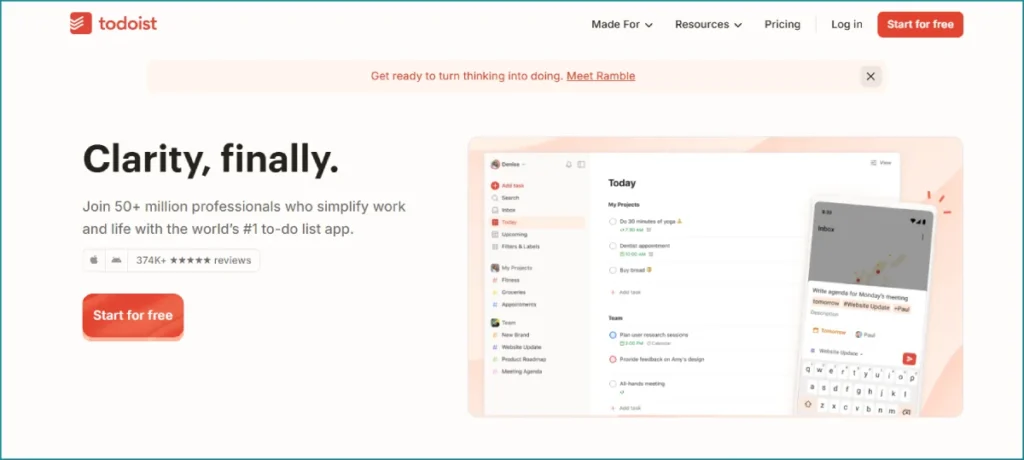
Verdict: the cleanest, fastest task manager for individuals who want capture-and-go simplicity. Todoist nails the one thing a task app must do well: getting a thought out of your head and into a list in seconds. Its natural-language input is best in class. Type “Submit report every second Thursday at 3pm p1” and it parses the recurrence, due date, and priority automatically.
The app stays out of your way with a clean interface across every platform, including Linux and wearables, and it connects to more than 80 other apps. In January 2026 it added Ramble, an AI voice-to-task feature powered by Google Gemini that turns spoken ideas into organized tasks, free users get 10 sessions a month and paid users get unlimited.
Todoist raised prices in December 2025, its first increase since 2022. The free Beginner plan covers basic lists but caps you at five projects with no reminders. Pro runs about $5 per month (roughly $60 per year) and unlocks reminders, calendar view, filters, and the AI features. Business is around $8 per user per month for shared team workspaces.
The catch: if you want a built-in Pomodoro timer or habit tracker, Todoist does not have them, and after the price hike it is no longer the budget option. For pure, fast task capture, though, it remains the tool we keep returning to.
TickTick: Best All-in-One Personal Planner
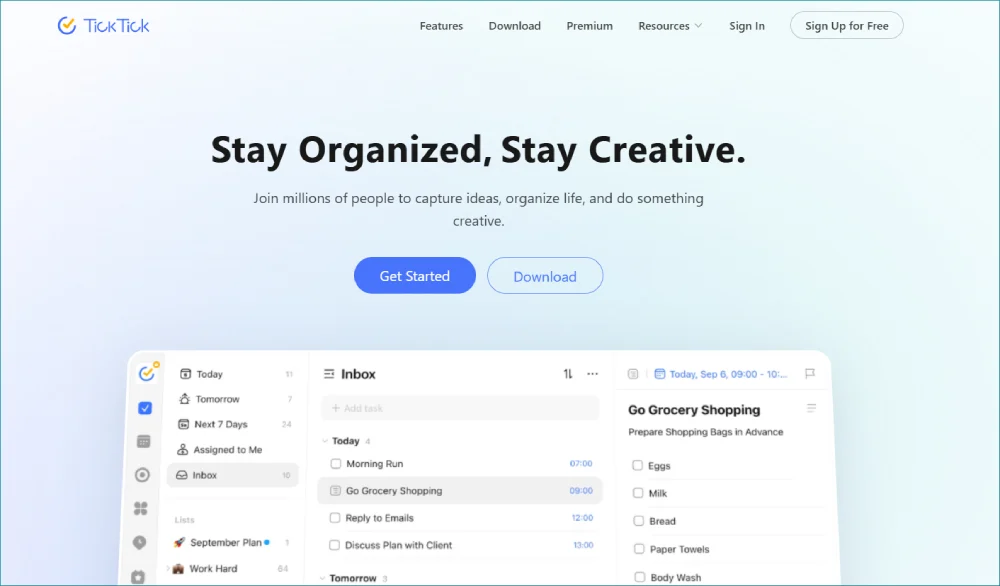
Verdict: the best value in personal productivity, with features rivals charge extra for. TickTick is what happens when a task manager refuses to make you buy three apps. It bundles tasks, a built-in calendar view, a Pomodoro timer, habit tracking, and an Eisenhower priority matrix into a single, affordable package.
At $35.99 per year (about $3 per month) for Premium, it consistently undercuts Todoist while including more out of the box. The free tier is genuinely usable and even includes a calendar view, which Todoist reserves for paying users. For students, freelancers, and anyone who wants their planner and focus timer in one place, it is hard to beat on price.
Where it gives ground is integrations (fewer than Todoist’s 80-plus) and natural-language parsing, which is more basic. There is no dedicated AI feature set yet either. But if you want maximum capability per dollar, TickTick is the smart financial choice and one of the best free apps for productivity if you stay on the free tier.
Notion: Best for Connected Docs, Notes, and Databases
Verdict: the most flexible workspace in productivity software, if you are willing to build it. Notion is less an app and more a set of building blocks. It combines documents, wikis, databases, and lightweight project management into one connected workspace, and millions of people now run their notes, tasks, and even company knowledge bases inside it.
The free plan is unusually generous: unlimited pages and blocks, 10 guest collaborators, and enough room for solo users and very small teams. Plus is $10 per user per month (billed annually) and adds unlimited file uploads and longer version history. Business is $15 per user per month and now bundles Notion AI, the writing and search assistant that used to be a separate add-on, which is a meaningful shift if AI matters to you.
The tradeoff is the blank-canvas problem. Notion’s flexibility means you have to design your own system, and that setup time trips up people who just want to open an app and start. It is also not the fastest for quick task capture. But for anyone building a connected knowledge system, nothing else offers this much range. Product Hunt’s 2026 community rankings repeatedly cite Notion as the hub teams gravitate toward for connected docs and lightweight automation.
ClickUp: Best All-in-One Productivity Tool for Teams
Verdict: the most feature-dense team platform, and one of the cheapest paid tiers in project management. ClickUp’s pitch is consolidation: tasks, docs, goals, dashboards, time tracking, and whiteboards in one place, so you can cancel two or three other subscriptions. For teams tired of paying for separate tools, that math is appealing.
The Free Forever plan supports unlimited users and unlimited tasks, which is rare. Unlimited is $7 per user per month (annual) and removes the storage cap while adding guest access and dashboards. Business is $12 per user per month with advanced automation, Google SSO, and granular permissions. ClickUp Brain, the AI add-on, costs an extra $7 to $9 per user per month.
The honest downside is that all that capability creates complexity. New users often report that features only reveal themselves once you go hunting, and the sheer number of views and settings can overwhelm a small team. If you want one platform to run everything and you are willing to invest setup time, ClickUp delivers more per dollar than almost anyone.
Asana: Best for Cross-Team Project Visibility
Verdict: the cleanest way to connect daily execution to bigger goals across departments. Asana has built its reputation on reducing what it calls “work about work,” the status meetings and update-chasing that drain teams. Its timeline (Gantt) views, workflow automation, and goal tracking make it a strong fit for organizations that need to see how projects ladder up to strategy.
The free Personal plan supports up to 10 users with unlimited tasks and 200-plus integrations, generous for a free tier. Starter is $10.99 per user per month (annual) and adds timeline view, the workflow builder, and 250 automations a month. Advanced jumps to $24.99 per user per month, adding portfolios, OKR-style goals, workload management, and native time tracking.
That jump to Advanced is steep, more than double Starter, so evaluate carefully whether you need portfolios before committing. Asana also charges per user with no flat-fee option, which gets expensive at scale compared with tools like Basecamp. For mid-size teams that value clean design and strategic visibility, though, it is a polished, reliable choice.
Trello: Best Visual Kanban Boards
Verdict: the friendliest entry point to visual project management. Trello’s card-and-board system is so intuitive that most people understand it in about thirty seconds. Drag a card from “To Do” to “Doing” to “Done” and you have a working system. For personal projects, editorial calendars, and small-team workflows, that simplicity is a feature, not a limitation.
The free plan covers up to 10 collaborators, 10 boards, and 250 automation runs a month through Butler, Trello’s built-in automation. Standard is $5 per user per month (annual) and Premium is $10 per user per month, adding views like calendar, timeline, and dashboard plus unlimited automation. Crucially, Trello has no seat minimums, so a two-person team pays for exactly two seats.
Trello’s ceiling is its strength turned upside down: once projects get genuinely complex, with dependencies and cross-project reporting, you outgrow boards quickly. It is the best tool for visual simplicity and a poor fit for portfolio-level planning. Start here, upgrade when you hit a real wall.
Monday.com: Best Customizable Work Operating System
Verdict: the most visually flexible work platform, with a pricing structure that punishes tiny teams. Monday.com (now often branded monday work management) uses colorful, customizable boards that adapt to almost any workflow, from marketing campaigns to CRM pipelines to software sprints. Its visual appeal and flexibility have made it one of the most popular platforms in 2026.
Pricing is where you need to read the fine print. The free plan covers just two seats. Basic is $9 per seat per month, Standard (the most popular tier) is $12 per seat per month, and Pro is $19 per seat per month, all billed annually. Every paid plan enforces a three-seat minimum, so a solo user or a duo still pays for three seats. That means a real minimum of $27 per month even if you work alone.
For teams of five or more that want a visual, automation-friendly system, Monday is excellent and the Standard tier offers strong value. For solopreneurs, that seat minimum makes cheaper options like ClickUp, Notion, or Trello the smarter call.
Microsoft To Do: Best Free Task List
Verdict: a genuinely capable task manager that costs nothing. Built into the Microsoft ecosystem and the successor to the beloved Wunderlist, Microsoft To Do is completely free with no paid tier. It syncs across devices, integrates with Outlook tasks, and offers a daily “My Day” planning view that nudges you to focus.
It is feature-limited compared with Todoist or TickTick, no advanced filtering, no habit tracking, no native Pomodoro, but for anyone already living in Outlook or Microsoft 365, it is a frictionless, zero-cost way to manage tasks. If you only need basic lists and reminders, you may not need to pay for anything at all.
Important: Before paying for a project management platform, run a free trial with real projects, not test data. The friction that matters (slow loading, confusing navigation, missing views) only shows up under real workload.
Best AI Productivity Tools for Work, Teams & Business
AI productivity tools are changing fast, and they’re becoming a bigger part of everyday work. They can help with everything from writing and research to scheduling, meeting notes, and repetitive tasks—often saving hours of work.
But you don’t need AI for everything. The best AI productivity tools are the ones that fit naturally into your existing workflow and help you get more done without adding extra complexity.
Claude: Best AI Assistant for Writing, Analysis, and Coding
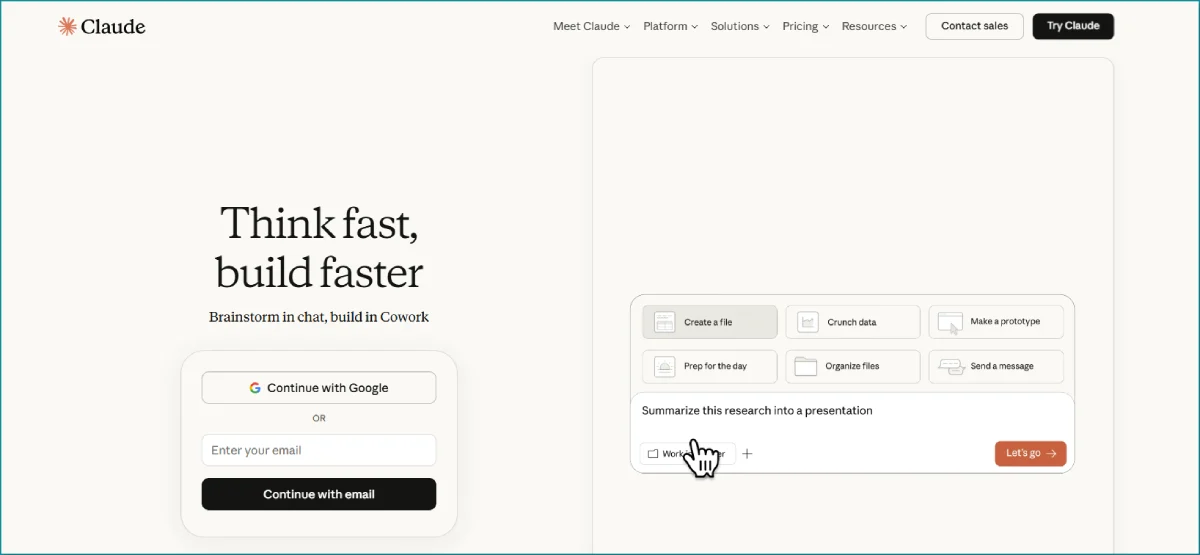
Verdict: the AI assistant we rate highest for serious writing, long-document analysis, and coding, and our number-two pick overall. Claude, built by Anthropic, has earned a following among writers, researchers, and developers for producing thoughtful, well-structured output with a more natural voice than most rivals. A very large context window lets it work through long documents and big codebases in one pass, and it holds up well on the kind of nuanced, long-form work where other assistants tend to flatten into generic prose.
For productivity specifically, Claude does far more than chat. It analyzes and summarizes lengthy PDFs and spreadsheets, drafts and refines documents, and writes and debugs code through Claude Code, its agentic coding tool. Claude Cowork handles multi-step knowledge work for non-developers, Projects give it persistent context for ongoing work, and it can search the web for current information.
Pricing mirrors the wider market. The Free plan covers web, mobile, and desktop with rolling usage limits. Pro is $20 per month (or $17 a month billed annually) for roughly 5x the free capacity plus access to the latest Claude models and Claude Code. Power users who hit limits can move up to Max at $100 or $200 per month for 5x or 20x the Pro capacity, and Team plans start at $25 per seat per month with a five-seat minimum.
The honest tradeoff: Claude’s consumer feature set is narrower than ChatGPT’s in a few areas, it leans into text, reasoning, and code rather than image generation or a sprawling app-connector marketplace, and heavy users can still hit Pro’s limits during long sessions. If your priority is writing quality, document analysis, and coding, Claude is our top AI pick. If you want the widest set of consumer features, ChatGPT (next) is the broader generalist. Plenty of people keep both and switch based on the task.
ChatGPT: Most Versatile All-Around AI Assistant
Verdict: the most versatile AI productivity tool, and still one of the best subscription values in tech. ChatGPT has become the default AI assistant for drafting, brainstorming, summarizing, coding help, and research. By 2026 it supports voice, image generation, deep research reports, an agent mode that completes multi-step tasks, and dozens of app connectors.
The free tier is capable (though it now shows ads), and ChatGPT Plus holds steady at $20 per month, the same price it launched at in early 2023 while the product expanded enormously. A budget Go plan sits at $8 per month, and power-user Pro tiers run $100 and $200 per month for higher limits and the strongest reasoning models. For most knowledge workers, Plus is the sweet spot.
The honest caveat: AI output still needs a human editor. It can sound confident while being wrong, and for SEO content specifically, raw AI drafts share a samey structure that search engines increasingly recognize. Use it to break writer’s block and accelerate first drafts, not to publish unedited. Claude (reviewed just above) is the alternative many writers prefer for long-form and nuanced tone, and the two are worth testing side by side.
Motion: Best AI Auto-Scheduling Tool
Verdict: the most advanced AI calendar, ideal for chaotic schedules, priced for people who really need it. Motion’s signature trick is automatic scheduling. You add tasks with time estimates and deadlines, and its AI fits them into your open calendar slots around existing meetings. When a meeting runs long or a task slips, Motion rebuilds your day automatically, removing the daily cognitive load of replanning.
There is no free tier and no escaping the price: the Pro AI plan runs about $19 per seat per month on annual billing (around $29 to $49 month to month), and Business AI is $29 per seat per month with team capacity planning. That is steep next to a $5 task manager, and users sometimes describe “fighting the algorithm” when it schedules work at times they would not choose.
Motion earns its cost for one specific person: someone with a constantly shifting calendar, 10-plus meetings a week, and decision fatigue about what to do next. If scheduling is genuinely your bottleneck, the relief is real. If task initiation (not scheduling) is your struggle, a cheaper tool will serve you better.
Otter.ai: Best Meeting Transcription Tool
Verdict: the most established meeting assistant, with minute caps you must watch. Otter joins your Zoom, Google Meet, or Microsoft Teams calls, transcribes them in real time, identifies speakers, and generates summaries you can search later. For sales teams, recruiters, journalists, and anyone who lives in meetings, it turns spoken conversation into a searchable record.
The free Basic plan includes 300 transcription minutes a month with a 30-minute cap per conversation. Pro is $8.33 per user per month on annual billing (about $16.99 monthly) and lifts you to 1,200 minutes. Business is $19.99 per user per month annually (around $30 monthly) and removes the monthly cap entirely with a four-hour per-meeting ceiling.
The frustration reviewers consistently flag: Otter quietly reduced the Pro plan from 6,000 to 1,200 minutes without cutting the price, so heavy users burn through it in about two weeks. Pro also caps file imports at 10 a month. If you run back-to-back calls, budget for Business or evaluate a usage-based alternative. For lighter, weekly use, Pro is solid.
Grammarly: Best Writing Assistance
Verdict: the most polished real-time writing coach for clarity and tone. Grammarly goes well beyond catching typos. It rewrites clunky sentences, adjusts tone, flags wordiness, and now layers in generative AI for drafting and rephrasing, all inside the apps you already write in, from email to docs to your browser.
The free tier handles core grammar and spelling. Pro (previously Premium) is $12 per month on annual billing or $30 month to month, unlocking full-sentence rewrites, tone adjustments, plagiarism detection, and AI generation (capped at 1,000 prompts a month). Business is $15 per member per month and adds brand-voice features for teams that need consistent communication.
It is worth noting that the AI suggestions are aids, not replacements for your judgment, over-accepting them can flatten your voice. But for professionals who write all day, the clarity and tone improvements quickly justify the modest annual price.
Zapier: Best App Automation Tool
Verdict: the easiest way to connect your apps and automate the busywork between them, and our number-one automation pick for non-technical users. Zapier links more than 7,000 apps through automated workflows called Zaps. When something happens in one app (a new form submission, a new email, a new row in a sheet), Zapier triggers actions in others, no code required. It is the connective tissue that makes the rest of your stack work together.
The free plan covers 100 tasks a month with two-step Zaps, enough to test the waters. Starter is $19.99 per month (annual) for 750 tasks and multi-step Zaps with three premium apps. Professional is $49 per month for 2,000 tasks, unlimited premium apps, conditional paths, and webhooks. Recent updates bundled Tables and Interfaces into standard plans at no extra cost.
The honest tradeoff: Zapier is the most expensive automation platform per task. Alternatives like Make and the self-hosted n8n cost a fraction at high volume. But nothing matches Zapier’s app library or ease of use, and for connecting niche or obscure tools, it is often the only option that works. For most small businesses, the time saved pays for it quickly.
Pro Tip: Audit your task usage on Zapier’s free or dashboard view for a month before upgrading, then add a 30 percent buffer. Most people overestimate the tier they need, and tasks (not Zaps) are what you pay for.
Zapier is the most popular automation tool, but it is neither the most powerful nor the cheapest. Here are the three strongest alternatives, ranked by where they beat Zapier, so you can match the automation engine to your technical comfort and budget.
n8n: Best Automation Tool for Power and Value at Scale
Verdict: the most powerful automation platform, and the cheapest serious option if you can self-host. Our number-two automation pick. n8n (pronounced “n-eight-n”) is an open-source workflow automation tool that has become the favorite of technical teams who want Zapier-style automation without per-task pricing. Its node-based visual editor connects more than 500 integrations, and its HTTP Request node can reach virtually any API, so you are rarely blocked by a missing connector.
The headline feature is the pricing model. The self-hosted Community Edition is completely free with unlimited executions and every core integration, you just need a small server (a $5 VPS handles most workloads). n8n Cloud, the managed option, starts at about $24 per month (Starter, 2,500 executions) and $60 per month (Pro, 10,000 executions), with roughly 17 percent off on annual billing. Crucially, n8n counts whole workflow executions rather than per-step operations, so a complex multi-step workflow costs far less here than the same logic would on Zapier or Make.
The tradeoff is technical overhead. Self-hosting means you own uptime, backups, and security, and even the Cloud tiers have strict active-workflow and execution caps that polling workflows can burn through fast (a single Gmail-polling workflow can exhaust the Starter allowance in under two weeks). But for technical teams running real automation volume, n8n is the cheapest capable option by a wide margin, often a fraction of Zapier’s cost at scale.
Make.com: Best Visual Automation Builder on a Budget
Verdict: the most visual automation builder, ideal for complex branching workflows without a server. Our number-three automation pick. Make (formerly Integromat) sits between Zapier’s simplicity and n8n’s raw power. Its canvas-style editor shows your automation as a visual map of connected modules, which makes branching logic, loops, and error handling far easier to design and debug than Zapier’s linear layout. With more than 3,000 app integrations, its library is second only to Zapier’s.
Pricing is its strongest argument against Zapier. The free plan covers 1,000 operations a month, and the Core plan starts around $9 to $10.59 per month for 10,000 operations, dramatically cheaper than Zapier for comparable volume. The catch is the counting model: Make charges per operation (each individual action), so a workflow with six steps per record consumes six operations per record, and those allowances disappear faster than the headline number suggests.
For teams that want a managed, no-server automation tool with powerful visual logic at a lower price than Zapier, Make is the sweet spot. It has a steeper learning curve than Zapier but costs far less at scale, and it spares you the technical commitment that self-hosting n8n demands.
OpenClaw: Best Self-Hosted AI Automation Agent
Verdict: the most ambitious self-hosted, AI-native automation tool, for technical users who want total control. Our number-four automation pick. OpenClaw is a different animal from the other three. Rather than a visual workflow builder, it is an open-source, self-hosted AI agent gateway: it runs continuously on your own server, connects large language models to your apps and messaging platforms (Slack, Telegram, WhatsApp, Discord, and more), and executes tasks you describe in plain language. Created by developer Peter Steinberger in late 2025, it rapidly gained a large open-source following.
Because it is open-source and self-hosted, OpenClaw itself is free, your only running cost is the LLM API usage it consumes, or nothing at all if you point it at a local model through a runtime like Ollama. It uses a skills framework, modular plug-ins defined in simple instruction files that the community extends quickly, and it keeps your data on your own infrastructure for privacy.
This is the most advanced and the most demanding option on this list, and honesty matters here. Setup is genuinely technical, and the autonomy that makes it powerful also makes it risky. Community reports include agents running up unexpected API bills overnight and a security incident (nicknamed “ClawJacked”) tied to third-party skills running with full system access. Treat it as a power-user tool: sandbox it, set strict spending and permission limits, and audit any skill before installing it. For technical users who want AI-driven automation they fully own, nothing else here offers this much control.
Here is how the four automation tools compare at a glance:
| Automation Tool | Best For | Pricing Model | Free Option | Paid From |
|---|---|---|---|---|
| 1. Zapier | Ease of use, biggest app library | Per task | 100 tasks/mo | $19.99/mo |
| 2. n8n | Power and value at scale | Per execution | Free self-hosted | $24/mo cloud |
| 3. Make.com | Visual branching workflows | Per operation | 1,000 ops/mo | ~$9/mo |
| 4. OpenClaw | AI-native self-hosted control | LLM usage only | Free (open source) | Free + API costs |
The short version: choose Zapier if you value ease and the widest integration library, n8n if you are technical and want the best value at volume, Make if you want visual workflows at a lower price than Zapier, and OpenClaw if you want a self-hosted AI agent you fully own and can secure.
Best Note-Taking and Knowledge Productivity Software
Note-taking software is where ideas live before they become work. The four tools below span quick capture to permanent, private knowledge bases, and the right one depends entirely on whether you want speed, structure, or longevity.
Evernote: Best for Long-Term Note Storage
Verdict: the veteran note app, still strong for search and web clipping, now premium-priced. Evernote pioneered modern note-taking, and its strengths remain its powerful search (including text inside images and PDFs) and its excellent web clipper for saving articles and research. If you have years of accumulated notes, its organization and retrieval are still excellent.
The free plan is now quite limited. Personal runs about $14.99 per month (around $129.99 per year) and Professional about $17.99 per month, adding tasks, calendar integration, and more storage. A Teams tier sits near $24.99 per user per month.
Evernote’s price increases over the years drew criticism, and newer tools like Notion and Obsidian now cover much of the same ground at lower cost. It remains a fair pick for long-term storage and heavy clippers, but it is no longer the obvious default it once was. Evaluate the free tiers of alternatives before committing.
Obsidian: Best Private Knowledge Base
Verdict: the best tool for building a connected, future-proof second brain you fully own. Obsidian stores your notes as plain Markdown files on your own device, which means you own your data outright and it will outlast any company. Its standout feature is bidirectional linking and a graph view that visualizes how your ideas connect, making it a favorite for researchers, writers, and serious knowledge workers.
For personal use, Obsidian is free. Commercial use runs about $50 per user per year, and optional paid add-ons include Sync (for encrypted multi-device syncing) and Publish (for putting notes online). Because the core stays on your machine, it works offline and raises no cloud-privacy concerns.
The tradeoff is the learning curve and the lack of real-time collaboration, this is a single-player tool by design. If you want a private, durable, infinitely customizable knowledge system and you do not need team editing, nothing matches it.
Microsoft OneNote: Best Free Freeform Notebooks
Verdict: the most flexible free notebook, especially for handwriting and mixed media. OneNote gives you a digital notebook where you can type, draw, clip, and arrange content anywhere on the page, no rigid structure required. It is completely free, syncs across devices, and shines on tablets with a stylus for handwritten notes and annotation.
For students, meeting notes, and anyone who thinks visually rather than in tidy lists, OneNote’s freeform canvas is liberating. It integrates tightly with the rest of Microsoft 365 too. The downside is that its very freedom can get messy at scale, and search is less precise than Evernote’s. But as a free, capable, cross-platform notebook, it is hard to argue with.
Google Keep: Best Quick Capture
Verdict: the fastest way to jot something down, free and everywhere. Google Keep is the sticky-note app of the productivity world: open it, type or speak a note, add a checklist or reminder, done. It syncs instantly across devices and lives inside the Google ecosystem, so notes surface in Gmail and Google Calendar contexts.
It is not built for long documents or deep organization, color labels and basic search are the extent of its structure. But for grocery lists, fleeting ideas, and quick voice captures, its speed is unmatched, and it costs nothing. Pair it with a heavier tool like Notion or Obsidian for the deep work, and let Keep handle the quick stuff.
Best Time Management and Focus Apps
Knowing where your time goes is the first step to protecting it. These four tools either measure your time, help you plan it intentionally, or block distractions so you can actually use it.
Toggl Track: Best Time Tracking Tool
Verdict: the gold standard for low-friction, privacy-respecting time tracking. Toggl Track makes logging time almost effortless: one click to start, one to stop, with apps on web, desktop, and mobile plus 100-plus browser extensions. Used by companies including Amazon and LinkedIn, it has built its reputation on being respectful rather than surveillance-heavy, no screenshots, no keystroke logging.
The free plan covers up to five users with unlimited time tracking and basic reports, genuinely generous for freelancers. Starter is $9 per user per month (annual) and adds billable rates, project estimates, and rounding. Premium is $18 per user per month and unlocks profitability tracking, labor-cost reporting, project forecasts, and timesheet approvals.
The main limitation is that profitability features require the pricier Premium tier, and free plans include only one workspace. For anyone who bills by the hour or wants to understand their working patterns, Toggl makes tracking easy enough that you will actually stick with it, which is the whole point.
RescueTime: Best Automatic Focus Tracking
Verdict: the best tool for seeing the uncomfortable truth about where your day goes. Unlike Toggl, RescueTime runs in the background and automatically tracks which apps and websites you use, then categorizes them as productive or distracting. You do not start or stop anything, it just reveals your real digital habits, often surprisingly.
It includes focus sessions that block distracting sites, daily focus goals, and weekly reports. Pricing sits around $6.50 per month (roughly $78 per year), with a free Lite tier that offers basic tracking. The automatic nature is its strength and its caveat: it works best for individual self-awareness rather than team billing.
If you have ever finished a day wondering where the hours went, RescueTime answers that question with data. Pair it with intentional planning and the insight turns into change.
Sunsama: Best Daily Planning Ritual
Verdict: the calmest, most intentional daily planner, for people who want to plan, not automate. Sunsama is built around a guided daily ritual: each morning you pull tasks from your other tools (Asana, Todoist, Gmail, and more) onto a single planned day, estimate how long each will take, and reflect each evening on what got done. Wirecutter named it the best scheduling app, and its fans love the deliberate, anti-overwhelm pace.
There is no free plan. Pricing is about $20 per month on annual billing (around $25 month to month), recently updated after five years of holding steady. That is premium for a planner, and the planning horizon is capped at roughly two weeks by design.
Sunsama is the opposite of Motion’s hands-off AI: it keeps you in control and asks you to think. If the reflective ritual appeals and you want a single, intentional view of your day pulled from many sources, it is worth the price. If you want the software to schedule for you, Motion fits better.
Forest: Best Focus and Habit Builder
Verdict: the most charming way to beat phone distraction. Forest gamifies focus: you plant a virtual tree, and if you leave the app to check social media before your timer ends, the tree dies. Stay focused and you grow a forest over time. It sounds silly until you find yourself unwilling to kill a tree, which is exactly the behavioral nudge it is designed to create.
The mobile app is a small one-time purchase (a few dollars), with a free browser extension available. It even partners with a real tree-planting organization, turning your virtual focus into actual trees. It is not a deep productivity system, just a focused-timer tool, but for people who lose hours to phone-checking, that single function is genuinely effective.
Best Apps for Work: Communication and Collaboration
The best apps for work are the ones that replace scattered email threads and endless meetings with organized, searchable communication. These two workplace productivity tools anchor how modern teams talk to each other.
Slack: Best Team Messaging
Verdict: the default hub for real-time team communication, with a free tier that hides a real catch. Slack organizes team conversation into channels, replacing the chaos of group email with searchable, topic-based threads. It connects to thousands of apps, supports huddles for quick calls, and now includes AI features for summarizing conversations and catching up on what you missed.
The free plan is real, not a trial, but it limits message history to 90 days (older messages get hidden) and caps integrations at 10. Pro is $7.25 per user per month on annual billing (about $8.75 monthly) and gives you unlimited history and integrations plus group huddles. Business+ is $12.50 per user per month, adding SSO, compliance features, and a 99.99 percent uptime guarantee.
That 90-day history limit on the free plan is the quiet upgrade trigger for most teams, losing access to past conversations hurts fast. For any team that relies on async communication, Slack is the standard for good reason, but plan to pay once your history matters.
Zoom: Best Video Meetings
Verdict: the most reliable video conferencing, with a free tier built to nudge you upward. Zoom became a verb for a reason: its video quality and reliability remain best in class, and the platform now bundles Team Chat, an AI Companion for meeting summaries, and whiteboards under the Zoom Workplace brand.
The free Basic plan allows unlimited meetings but caps group sessions at 40 minutes with up to 100 participants, the single most common reason people upgrade. Pro is $13.33 per user per month on annual billing (about $16.99 monthly), removing the time limit and adding cloud recording and the AI Companion. Business is $18.33 per user per month, raising the participant cap to 300 and adding SSO.
That 40-minute group limit is deliberate friction, fine for occasional calls, frustrating for daily meetings. If your team meets often, Pro pays for itself in not getting cut off mid-sentence. Microsoft Teams (included with many Microsoft 365 business plans) is the natural alternative if you already live in that ecosystem.
Microsoft Teams: Best for Microsoft-Centric Teams
Verdict: the most cost-effective meeting and chat tool if you already pay for Microsoft 365. Teams bundles chat, video meetings, file sharing, and deep integration with Word, Excel, PowerPoint, and SharePoint into one hub. For organizations already on Microsoft 365, it arrives effectively free with most business plans, which makes it tough to beat on raw value.
Its strength is also its catch: Teams shines inside the Microsoft world and feels heavier and less intuitive than Slack or Zoom for teams that are not. Channels, tabs, and the broader interface have a steeper learning curve, and external collaboration is clunkier than Slack’s. But if your company runs on Microsoft 365, consolidating communication into Teams instead of paying separately for Slack and Zoom is often the smarter financial move. Microsoft publishes free setup walkthroughs, and there are extensive Teams tutorials on YouTube that flatten the learning curve quickly.
Best Cloud-Based Productivity Suites
Cloud-based productivity apps reach their fullest expression in the two suites that dominate office work. Both bundle email, documents, spreadsheets, slides, storage, and meetings into one subscription, and both now include AI. Choosing between them shapes your entire workflow, so it is worth understanding the real differences.
Google Workspace: Best Cloud-Native Office Suite
Verdict: the best suite for real-time collaboration and browser-first teams. Google Workspace bundles Gmail with a custom domain, Google Docs, Sheets, Slides, Drive, Meet, and Calendar into one cloud-native package. Its defining strength is collaboration: multiple people editing the same document in real time, with no version-conflict headaches, has been Google’s edge for years. Gemini AI is now included across all plans.
Business Starter is $7 per user per month (some regions $6) with 30GB of pooled storage per user. Business Standard is around $14 per user per month and bumps storage to 2TB with meeting recordings, often the best-value tier. Business Plus is $18 per user per month with 5TB and enhanced security. Nonprofits can use Business Starter free.
The main limitation is desktop power: Google’s web apps, while excellent for collaboration, still trail Microsoft’s desktop Office apps for complex spreadsheets and heavy document formatting. For small businesses, remote teams, and anyone who prizes simplicity and real-time editing, Workspace is the cleaner, more affordable choice. Google maintains detailed official Workspace plan documentation if you want to confirm current tiers and storage before committing.
Microsoft 365: Best for Desktop Office Power
Verdict: the most powerful office productivity software, especially for serious Excel and document work. Microsoft 365 pairs the desktop versions of Word, Excel, PowerPoint, and Outlook with cloud storage, Teams, and SharePoint. Excel in particular remains unmatched for complex financial modeling, and the desktop apps offer formatting depth Google’s web tools cannot fully replicate.
For home users, Microsoft 365 Personal is $9.99 per month (or $69.99 per year) with 1TB of OneDrive storage, and Family is $12.99 per month for up to six people. For businesses, Business Basic is $6 per user per month (web apps only), and Business Standard is $12.50 per user per month with the full desktop apps, though note prices are set to rise around July 2026, so locking in annual pricing before then can save money. Copilot, Microsoft’s AI assistant, is a separate add-on.
The tradeoff is complexity: more plans, more SKUs, and a steeper learning curve than Google’s straightforward tiers. Storage at the entry level is far more generous, though (1TB versus 30GB). For organizations that depend on Excel, advanced formatting, or deep Microsoft security tooling, 365 is the stronger suite.
| Suite | Entry Price | Storage (entry) | AI Included | Best For |
|---|---|---|---|---|
| Google Workspace | $7/user/mo | 30GB | Gemini (all plans) | Real-time collaboration, simplicity |
| Microsoft 365 (business) | $6/user/mo | 1TB | Copilot (add-on) | Desktop power, Excel, security |
| Microsoft 365 Personal | $9.99/mo | 1TB | Copilot (limited) | Individual home use |
How I Tested 30+ Productivity Tools
I tested these productivity tools based on real-world use, not just marketing claims. I looked at how they perform in everyday workflows, where they save time, and where they fall short.
For each tool, I considered:
- Features & ease of use: Core features, interface, and learning curve.
- Pricing & free plans: Current 2026 pricing, free plans, and upgrade costs.
- AI capabilities: AI assistants, automation, writing, research, and other smart features.
- Integrations & automation: Connections with other apps and workflow automation options.
- Collaboration & project management: Team features, task management, communication, and project workflows.
- Overall value: What you get for the price and whether the tool solves a real productivity problem.
Where useful, I also compared hands-on testing with independent reviews and current vendor information to keep the recommendations practical and up to date.
Best Productivity Apps for Small Business
The best productivity apps for small business are the ones that consolidate work without enterprise pricing or enterprise complexity. Small teams cannot afford tool sprawl, every subscription and every login is overhead a five-person company feels more than a five-hundred-person one. The goal is a lean stack where each app earns its keep.
For most small businesses, a practical starting stack looks like this: a cloud suite for the foundation (Google Workspace or Microsoft 365), one project tool (ClickUp or Notion for all-in-one, Trello for simplicity), one communication tool (Slack), and one automation tool (Zapier) to connect them. That covers documents, coordination, communication, and the glue between, often for under $40 per person per month total.
The smartest apps for business productivity are the ones that replace several others. ClickUp can absorb task management, docs, and time tracking. Notion can serve as wiki, project tracker, and database at once. Consolidation like this is how small teams stay fast: fewer tools, fewer context switches, less to maintain.
One category small businesses underinvest in is security, which is also a productivity issue, because resetting forgotten passwords and recovering breached accounts wastes real time.
1Password: Best Password Manager
Verdict: the most polished way to stop wasting time on passwords and stay secure doing it. A password manager is a productivity tool in disguise: every time you avoid a “forgot password” reset or a locked account, you save minutes and frustration. 1Password stores and autofills credentials across devices, generates strong passwords, and now flags phishing and weak logins.
After a price increase in March 2026, the Individual plan is $4.99 per month (or about $47.88 per year), and Families covers up to five members for $7.99 per month (about $71.88 per year), making the family plan one of the lowest per-person costs in the category. A Teams tier covers up to 10 users at a fixed monthly rate with SSO.
There is no free tier, only a trial, which is its main drawback next to free alternatives like Bitwarden. But for reliability, polish, and family or small-team use, it remains a top choice, and the time it saves across a year easily justifies the cost. If you run a content site or agency, pairing strong security with the right growth tools matters, our B2B SEO case studies show how operational discipline compounds into results.
How to Build Your Productivity Stack Without Tool Overload
Owning 26 great tools is useless if you try to use all of them. The most productive people we know run lean stacks of four to six tools that cover their core needs without overlap. Here is a simple framework for assembling yours.
Start by mapping your work into four buckets: capture (where ideas and tasks land), coordinate (how work moves forward, solo or with a team), communicate (how you talk to others), and create (where you produce the actual output). Pick one strong tool per bucket. A solo creator might use Todoist (capture), Notion (coordinate and create), and Slack or email (communicate). A small team might use ClickUp, Google Workspace, and Slack, glued together with Zapier.
Then resist the upgrade itch. Every tool you add is a tax: another notification stream, another place to check, another subscription to justify. Before adding anything, ask whether an app you already pay for can do the job. Often it can, you just have not explored it. The biggest productivity gains usually come from using fewer tools more deeply, not from chasing the newest app.
Finally, review quarterly. Cancel what you stopped using, consolidate where one tool now covers two, and only add when you hit a genuine wall. A productivity stack is a garden, not a museum, prune it regularly. If you are building an online business specifically, our guide on how to start a blog walks through which tools actually matter at each growth stage so you do not over-invest early.
It also helps to match the stack to your work style rather than copying someone else’s setup. A visual thinker who plans on boards will thrive with Trello or Monday and feel boxed in by a linear list. A writer who lives in text will move faster in Todoist and Obsidian than in a colorful drag-and-drop board. There is no universally correct stack, only the one that matches how your brain actually organizes work. When you find a tool that feels effortless rather than effortful, that is the signal you have matched the tool to the person, and that fit matters more than any feature comparison chart.
Pro Tip: The single highest-impact productivity habit is not a tool at all, it is time-blocking your calendar around your most important work before the day fills with other people’s priorities. Tools support the habit. They do not replace it.
Free vs Paid Productivity Tools: What Is Actually Worth Paying For
You can build a surprisingly powerful stack entirely from free tools. The best free apps for productivity are genuinely capable in 2026: Microsoft To Do, Google Keep, OneNote, the free tiers of Notion, TickTick, Trello, and Toggl Track, plus free ChatGPT and a free password manager, cover most individual needs at zero cost.
So when is paying worth it? Pay when a free tier’s specific limit costs you more than the subscription. Slack’s 90-day history cap, Zoom’s 40-minute meeting limit, Notion’s file-upload restrictions, and Otter’s minute caps are the classic upgrade triggers, each one a real friction you feel daily. The math is simple: if a $10 monthly upgrade saves you an hour a month, it has paid for itself for anyone whose time is worth more than $10 an hour.
Be skeptical of paying for capability you will not use, though. The Advanced tier of a project tool, the highest automation plan, the AI add-on you tried once, these are where subscription waste accumulates. Audit your tools twice a year and downgrade or cancel anything whose premium features you have not touched. The most cost-effective stack is not the cheapest one or the most feature-packed one. It is the one where every dollar maps to a friction you actually feel.
Productivity Software News and Trends Today
The productivity software news today is dominated by one theme: AI moving from a novelty bolt-on to the core of how these tools work. In 2026, the shift is visible everywhere. Notion bundled its AI into the Business tier instead of selling it separately. Todoist added Gemini-powered voice-to-task. Slack, Zoom, ClickUp, and the major suites all ship AI summaries, drafting, and assistants as standard features rather than premium curiosities.
The bigger trend underneath is consolidation. The most-discussed tools in 2026 (Motion, ClickUp, Notion) all pitch the same promise: replace several apps with one. Product Hunt’s 2026 community data shows teams gravitating toward hubs that reduce app-switching, centralizing tasks, docs, communication, and search in fewer places. App-switching itself is now recognized as a productivity tax, and tools that eliminate it are winning.
Two cautions are worth noting. First, AI pricing is in flux, OpenAI’s leadership has publicly signaled that current pricing models will evolve, so locking in annual plans you are confident about makes sense. Second, AI-generated output still needs human oversight, especially for published content, where search engines increasingly detect formulaic AI structure. The teams getting the most from these workplace productivity tools treat AI as an accelerator with a human in the loop, not an autopilot. For a deeper look at how AI is reshaping search and content specifically, our review of Orchly AI and our roundup of Copilot rank-tracking tools cover where this is heading.
Common Productivity Tool Mistakes That Quietly Waste Time
The biggest productivity killer is rarely the absence of a good tool. It is the way people use the tools they already have. After watching hundreds of individuals and small teams set up their stacks, the same handful of mistakes show up again and again, and each one quietly drains the time these apps are supposed to save.
The first is tool-hopping. Switching task managers every few months feels productive (the new app is shiny, the setup is fun), but every migration costs hours and resets the muscle memory that makes a tool fast. Pick a tool that is good enough and commit for at least a quarter before judging it. Consistency beats optimization here almost every time.
The second is over-configuration. Notion users build elaborate dashboards they never open. ClickUp teams create custom statuses, automations, and views so intricate that nobody updates them. The system becomes a second job. The fix is to start minimal: capture tasks, complete them, and only add structure when a real problem demands it. A simple system you actually use beats a perfect one you abandon.
The third is notification overload. Slack, email, project tools, and calendars all ping by default, and a steady drip of interruptions fragments your attention far more than the few seconds each one takes. Turn off non-essential notifications, batch your messages into a few windows a day, and protect deep-work blocks ruthlessly. The tools should serve your attention, not auction it off.
The fourth is paying for features you never use. The Advanced tier, the top automation plan, the AI add-on you tried once, this is where subscription waste piles up. Audit twice a year and downgrade anything whose premium features you have not touched.
The fifth, especially for businesses building an online presence, is treating productivity tools as a substitute for strategy. The right software makes execution faster, but it cannot decide what to work on. That clarity comes from goals, not apps. If you are growing a website or business, pairing a lean tool stack with a real plan, the kind our SEO and digital marketing team builds with clients, is what turns saved time into actual results. The same principle runs through our SEO strategy guides: tools amplify a good plan and expose a missing one.
Avoid these five, and you will get more out of a free, simple stack than most people get from an expensive, complicated one.
Frequently Asked Questions About Productivity Tools
What are productivity tools?
Productivity tools are applications that help you create, organize, communicate, or manage work more efficiently by reducing the manual effort between an intention and a finished result. They include task managers, project management platforms, note apps, time trackers, communication tools, AI assistants, and full office suites. The best ones remove a specific, repetitive friction from your day.
What is the best productivity tool overall?
There is no single best tool, because the right choice depends on your work. For personal task management, Todoist and TickTick lead. For all-in-one team work, ClickUp and Notion stand out. For AI assistance, ChatGPT is the most versatile. For office work, Google Workspace and Microsoft 365 dominate. The best tool is the one that fits your specific workflow and removes friction you actually feel.
What are the best free productivity apps?
The best free apps for productivity in 2026 include Microsoft To Do, Google Keep, and OneNote (all completely free), plus the generous free tiers of Notion, TickTick, Trello, and Toggl Track. Free ChatGPT handles AI writing, and Obsidian is free for personal use. You can build a capable stack entirely from free tools and only pay when a specific limit starts costing you time.
What is the difference between productivity software and project management software?
Productivity software is the broad category of any tool that helps you work more efficiently, including notes, time trackers, and AI assistants. Project management software is a subset focused specifically on coordinating tasks, timelines, and people across a team or complex project. Tools like Asana, Monday.com, and ClickUp are project management apps; Notion and ChatGPT are broader productivity tools.
Are AI productivity tools worth it?
AI productivity tools are worth it when they fit your existing workflow and solve a real bottleneck, such as scheduling (Motion), meeting notes (Otter.ai), writing (Grammarly, ChatGPT), or automation (Zapier). With around three-quarters of knowledge workers now using generative AI, the value is proven, but the output still needs human review, and you should pay only for AI features you will actually use regularly.
How many productivity tools should I use?
Most highly productive people use four to six tools that cover their core needs without overlap: typically one for capturing tasks, one for coordinating work, one for communication, and one for creating output. Adding more tools usually slows you down by creating more notifications, logins, and context-switching. Use fewer tools more deeply rather than chasing every new app.
What are the best cloud-based productivity apps?
The best cloud-based productivity apps are the two major suites, Google Workspace and Microsoft 365, which bundle email, documents, spreadsheets, storage, and meetings in the cloud. Beyond suites, Notion, ClickUp, Asana, Slack, and Trello are all cloud-native and sync across devices automatically. Cloud-based tools let you work from anywhere and collaborate in real time.
What productivity tools are best for small business?
The best productivity apps for small business prioritize consolidation and value. A lean stack of a cloud suite (Google Workspace or Microsoft 365), one project tool (ClickUp, Notion, or Trello), one communication tool (Slack), and one automation tool (Zapier) covers most needs, often for under $40 per person monthly. Add a password manager like 1Password for security, which is also a hidden time-saver.
Which productivity tool is best for students?
For students, TickTick offers the best value with built-in task management, a calendar, a Pomodoro timer, and habit tracking for about $3 a month, and its free tier is genuinely usable. OneNote is excellent and free for handwritten and freeform notes, especially on tablets. Free ChatGPT helps with research and essay structure, and Forest helps fight phone distraction during study sessions.
Do I need to pay for productivity software?
You do not necessarily need to pay for productivity software, since many free tools are genuinely capable in 2026. Pay only when a free tier’s specific limit costs you more than the subscription would, for example Slack’s 90-day message history, Zoom’s 40-minute meeting cap, or Notion’s storage restrictions. If a $10 upgrade saves you more than an hour a month, it has likely paid for itself.
What is the best AI tool for writing?
ChatGPT is the most versatile AI tool for writing, drafting, and research at $20 a month for Plus, with a capable free tier. Anthropic’s Claude is a strong alternative many writers prefer for long-form and nuanced tone. For real-time grammar, clarity, and tone improvements inside your existing apps, Grammarly is the best dedicated writing assistant. Always edit AI output rather than publishing it raw.
How do I avoid having too many productivity apps?
Map your work into four buckets, capture, coordinate, communicate, and create, and pick one strong tool per bucket. Before adding any new app, ask whether a tool you already pay for can do the job; it often can. Review your stack quarterly, cancel what you stopped using, and only add a tool when you hit a genuine wall. Fewer tools used deeply beats many tools used shallowly.
What is the best time tracking tool?
Toggl Track is the best time tracking tool for low-friction, privacy-respecting tracking, with a free plan for up to five users and paid plans from $9 per user per month. For automatic tracking that reveals where your time actually goes without manual input, RescueTime (around $6.50 a month) runs in the background and categorizes your app and website use. Choose Toggl for billing, RescueTime for self-awareness.
Are productivity suites better than separate apps?
Productivity suites like Google Workspace and Microsoft 365 offer better value and tighter integration than buying separate apps for email, documents, and meetings, since everything works together and syncs automatically. However, specialized standalone tools (a dedicated task manager, a focused note app) often outperform a suite’s built-in equivalents. The best approach is usually a suite for the foundation plus a few best-in-class specialized tools.
The Bottom Line
The best productivity tools are not the ones with the longest feature lists or the slickest marketing. They are the ones that quietly remove friction from how you already work, so the time you save goes back into the work that actually matters.
If you take three things from this guide, make them these. First, pick one strong tool per core need, capture, coordinate, communicate, create, and resist the urge to collect more. Second, pay only when a free tier’s specific limit costs you real time, not because a premium plan exists. Third, treat AI as an accelerator with you in the driver’s seat, not an autopilot.
Start small. Choose one tool from this list that solves your most painful daily friction, give it two weeks of real use, and build from there. A lean stack you actually use will always beat an impressive one you do not. For more guides on the tools and tactics that drive real results, explore the rest of the Webseotrends blog and our breakdowns of the best on-page SEO tools and AI website builders that pair naturally with a modern productivity workflow.
