
Every SEO conversation eventually comes back to backlinks. They are one of Google’s top three ranking factors alongside content quality and user intent signals, and they have remained a dominant signal for over two decades.
But here’s what most guides miss: knowing how to search backlinks in Google search and how to check backlinks properly is not a simple task. It is the foundation of every effective SEO and link building strategy.
If you don’t know how to find backlinks on Google, analyze them, and track changes over time, you are making decisions blindly:
• You do not know which pages are attracting backlinks and why
• You cannot accurately check backlinks in Google to measure campaign performance
• You have no baseline to evaluate whether your link building efforts are working
• You cannot identify lost links or new opportunities
• You risk missing toxic backlinks that can harm your rankings
There is also a critical nuance many overlook. The number of backlinks you see in tools like Ahrefs or Semrush will almost never match what you see in Google Search Console backlinks data.
That’s because third party tools crawl the web independently and report everything they find, including low quality or ignored links. In contrast, Google only shows backlinks it has actually discovered, processed, and associated with your website.
This is why learning how to check backlinks in Google Search Console and using Google’s own data is essential if you want to understand your true SEO performance.
🔑 Key Takeaway: Knowing how to check backlinks in Google is the intelligence work that makes every other SEO activity smarter. It tells you where you stand, what your competitors have that you do not, and exactly what to build next.
Why Should You Check Your Website Backlinks in Google?
Before we begin, you sould know this first.
What Are Backlinks?
Simple definition: A backlink is any link on another website that points to a page on your site. When Site A links to your page, your page has earned a backlink from Site A.
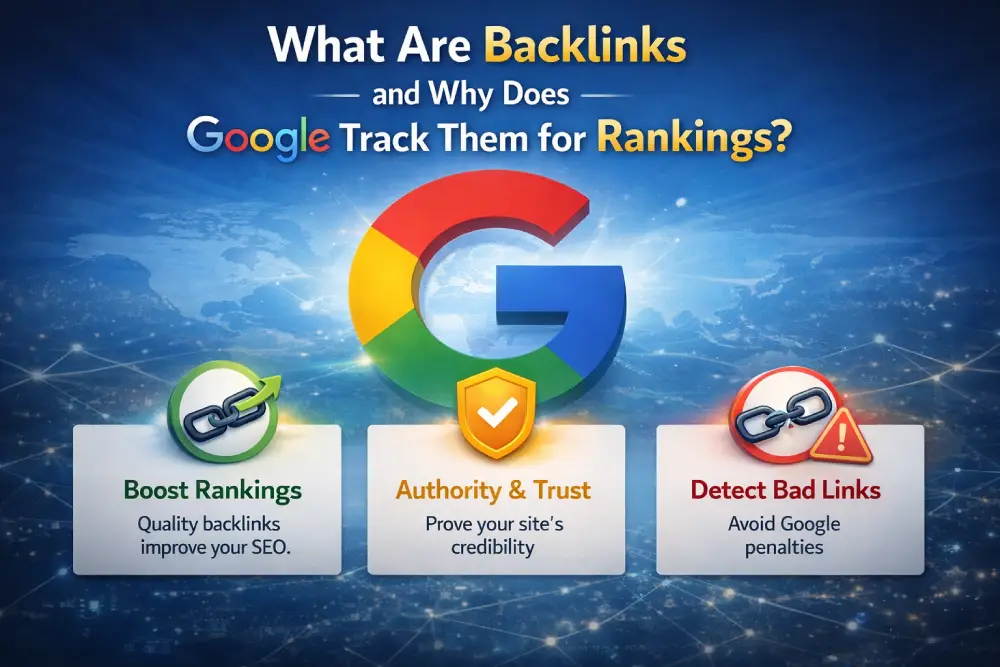
In Google’s framework: Backlinks are votes of confidence. When credible, relevant websites link to your content, Google interprets this as evidence that your page contains information worth recommending. The more authoritative and relevant the linking site, the stronger that signal.
Why Are Backlinks Important for SEO and Google Rankings?
Google has stated publicly that backlinks remain one of its top ranking factors. The logic is durable: it is relatively easy to optimize your own on-page content, but earning links from other sites requires producing something genuinely worth linking to. That external validation is harder to fake — which is why Google weights it so heavily.
The data backs this up. Analysis of millions of search results consistently shows that top-ranking pages have significantly more high-quality backlinks than pages ranking in positions 4–10 for the same queries. The correlation between backlink quality and rankings is one of the most replicated findings in SEO research.
What backlinks tell Google:
- Which websites consider your content authoritative enough to recommend
- What topics your domain is considered an expert on (based on the pages earning links and the anchor text used)
- How trusted your brand is relative to others in your space
- Whether your link acquisition has been earned naturally or manufactured artificially
What You Need to Know About Backlink Types Before Building Links
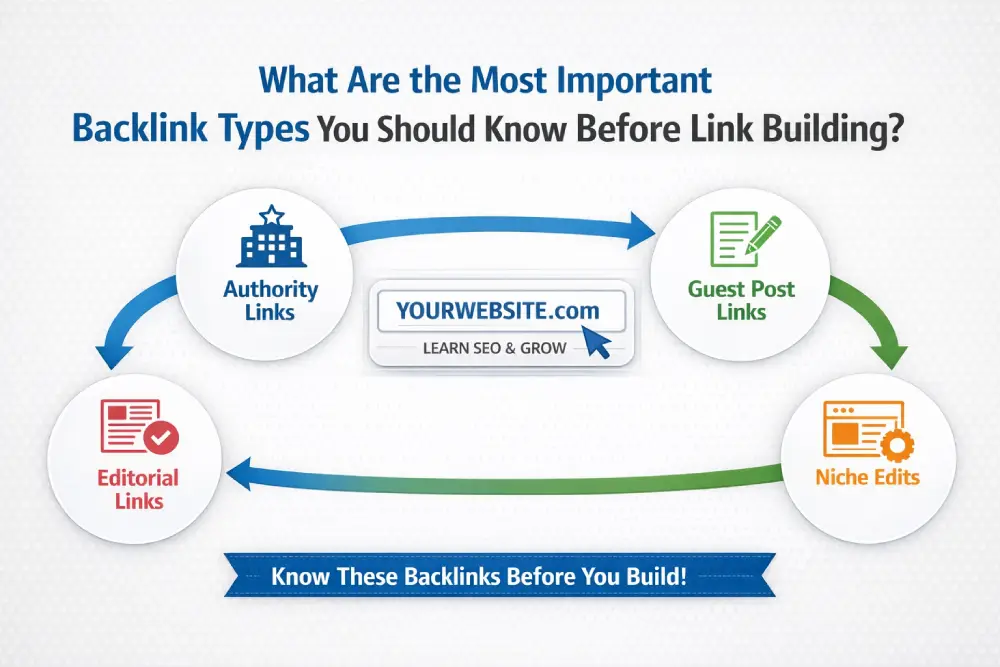
Before you start checking backlinks in Google, you need to understand what you are looking at. Not all backlinks affect your rankings equally — and some can actively hurt you.
Dofollow vs. Nofollow Links
Dofollow links are the default link type. They carry no restrictive attribute in their HTML, which means PageRank (link equity) passes freely from the linking page to your page. These are the links that directly boost your rankings.
<!-- Dofollow — no rel attribute restricting PageRank flow -->
<a href="https://yoursite.com/page">Anchor text</a>
Sources: editorial blog mentions, guest posts on relevant sites, resource pages, press coverage, niche directories, and partner pages.
Nofollow links carry rel="nofollow" in their HTML, which originally instructed Google to block PageRank transfer entirely.
<!-- Nofollow link -->
<a href="https://yoursite.com/page" rel="nofollow">Anchor text</a>
Important 2019 update: Google reclassified nofollow as a hint rather than a directive. Google may choose to credit nofollow links when its systems determine the placement represents genuine editorial endorsement. A nofollow link from a major news publication still carries meaningful indirect value — both for authority perception and referral traffic.
Sources: Wikipedia, social media platforms, many forum posts, comment sections, press release distribution sites.
Sponsored and UGC Links
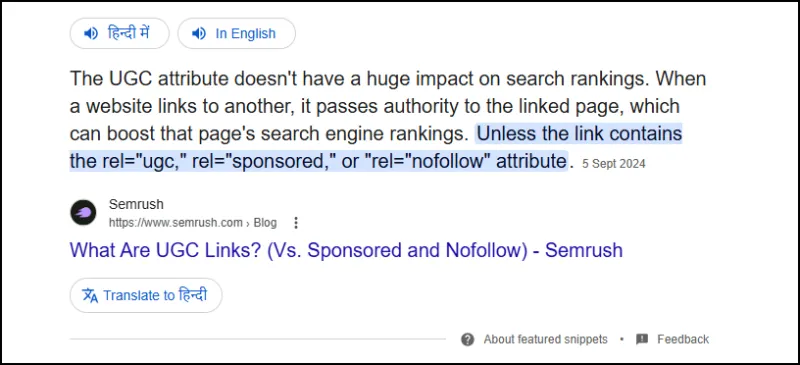
Google introduced two additional link attributes in 2019:
rel="sponsored" — Required markup for paid or sponsored link placements. Signals to Google that the link was commercially arranged and should not transfer PageRank. When you find these in your backlink audit, note them — they indicate either your own compliant paid placements or potential manipulative link patterns from low-quality paid sites.
rel="ugc" (User-Generated Content) — Applied to links in user-submitted content: forum posts, comment sections, Quora answers. Low direct ranking impact but can drive real referral traffic in relevant communities.
What Are the Strongest Backlink Types That Improve Rankings?
| Quality Rank | Link Type | Why It Works | Typical Source |
|---|---|---|---|
| 1 | Editorial mention | Placed by an editor/journalist citing your work — maximum trust signal | Industry publications, major media |
| 2 | Digital PR link | Earned through a media campaign; highest E-E-A-T value | BBC, Forbes, trade press |
| 3 | Guest post (quality sites) | Your content on a relevant publication with genuine audience | Niche blogs with real traffic |
| 4 | Resource page | Listed on a curated “recommended tools/resources” page | University or industry hub pages |
| 5 | Niche directory | Structured listing in a legitimate industry-specific directory | Association directories |
| 6 | Partner/referral link | Business relationship link from a relevant partner’s site | Supplier “partners” pages |
| 7 | Forum/community | Nofollow, but drives real traffic when contextually placed | Reddit, niche forums |
For a deep dive into earning the highest-quality links through media outreach and original content, the PR link building guide covers the full process from pitch to earned placement.
What a Healthy Backlink Profile Looks Like
Before checking your backlinks, you need to know what “good” looks like. A healthy backlink profile has five characteristics that make it natural, authoritative, and penalty-resistant.
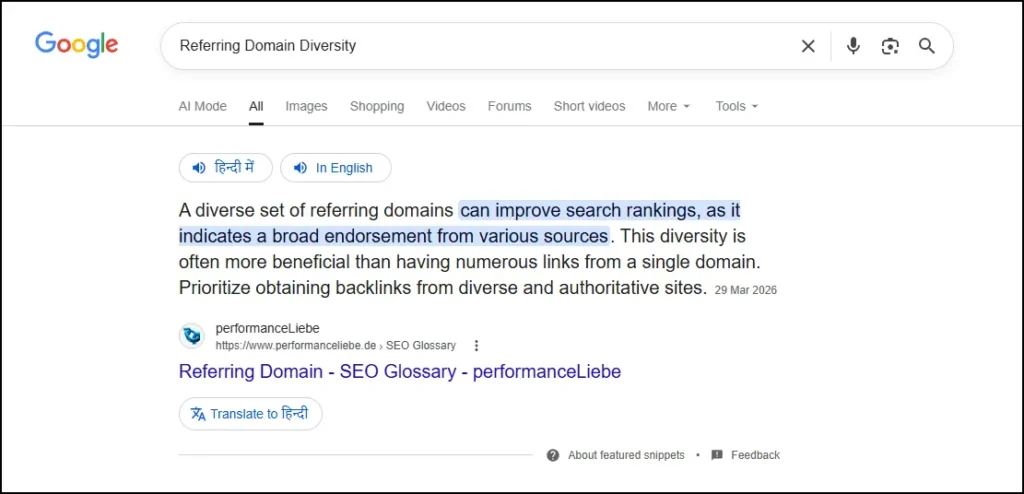
1. Referring Domain Diversity: 200 links from 200 different domains is dramatically more powerful than 200 links from a single domain. Each new referring domain represents a unique vote. A profile dominated by one or two sources raises red flags in Google’s spam detection systems.
2. Domain Authority and Traffic Spread: A natural profile includes links from a realistic range of domain authority levels — not exclusively from ultra-high-DA sites (statistically implausible) and not all from DA 1–5 spam sites (manipulation signal). Weight your targets toward DA 30–70 sites in your niche, with occasional high-DA placements from media and major industry outlets.
3. Topical Relevance: A link from a cybersecurity publication to your cybersecurity SaaS is worth more than a link from a cooking blog with the same DA. Topical relevance is an increasingly important quality signal in 2026. Google’s understanding of entity relationships means it evaluates not just the authority of the linking domain but how semantically related it is to your content.
4. Natural Anchor Text Distribution: This is one of the most diagnostic elements of any backlink audit. Over-optimized anchor text — too many exact-match keywords — remains one of the leading triggers for Penguin-related algorithmic assessments. A healthy approximate distribution:
- Branded anchors (your company or site name): 40–50%
- Naked URLs (yourdomain.com, just the URL): 20–25%
- Generic anchors (“click here,” “read more,” “this article”): 10–15%
- Topically related (non-exact-match: “link building guide,” “backlink strategy”): 10–15%
- Exact-match keyword (your precise target keyword): 5% maximum
5. Dofollow/Nofollow Ratio: Real-world linking behavior naturally produces a mix. A healthy profile is roughly 60–80% dofollow and 20–40% nofollow — because editorial links from real content tend to be dofollow, while social shares, forum mentions, and Wikipedia references are nofollow. A profile that is 95%+ dofollow looks engineered.
For a complete system of monitoring these indicators over time, the backlinks management guide covers an 8-year framework for keeping a backlink profile healthy across algorithm updates.
Method 1: How to Check Backlinks in Google Search Console (Free & Most Accurate)
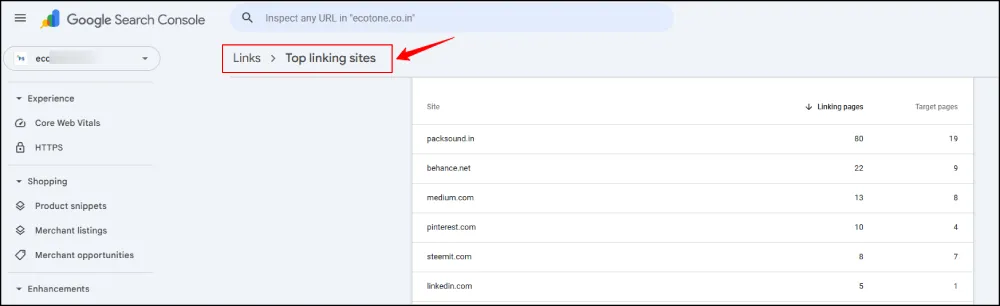
Google Search Console is the single most important tool for checking backlinks on Google. It is free, unlimited, and shows you exactly what Googlebot has associated with your site — the data that is actually driving your rankings.
No third-party tool can replicate what GSC shows you, because no third-party tool is Googlebot. When the numbers differ (and they always do), GSC is the authoritative source for your actual SEO-relevant backlink data.
Step-by-Step: Finding Backlinks in Google Search Console
Step 1: Access Google Search Console
Go to search.google.com/search-console and sign in with the Google account that has access to your property. If you have not yet verified your site in GSC, you will need to complete that process first (verification options include HTML file upload, DNS record, or Google Analytics/Tag Manager).
Step 2: Select the Correct Property
From the property selector at the top left, choose the website you want to check. Important: https://www.domain.com and https://domain.com are treated as separate properties in GSC. Make sure you are looking at the right one — ideally use a Domain Property (verified at the DNS level) which consolidates data across all variants.
Step 3: Navigate to the Links Report
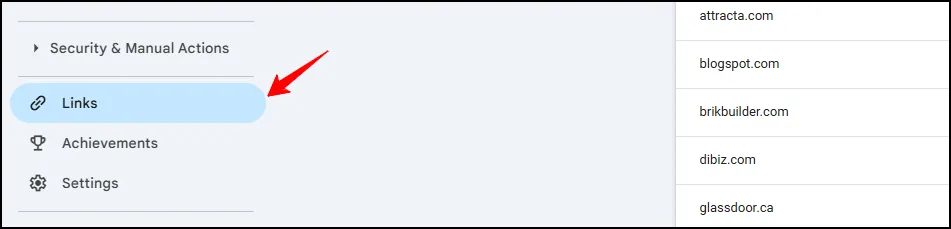
In the left sidebar, scroll down and click “Links”. This opens the full Links report — your complete picture of all backlinks Google has found and logged for your property.
Step 4: Understand the Report Layout
The Links report is divided into two main sections:
External links — links from other websites pointing to your site (backlinks) Internal links — links within your own site (valuable for PageRank flow analysis but not backlinks)
Within External links, there are three sub-reports: Top linked pages, Top linking sites, and Top linking text. Each answers a different strategic question.
How to Read and Use Each GSC Backlink Report
Top Linked Pages Shows which pages on your site have received the most external links.
How to read it: The page at the top is your most-linked asset — usually the homepage, but often a piece of content that has naturally attracted links over time. Pages appearing here are your proven linkable assets.
What to do with it:
- Pages that attract links naturally reveal what your industry considers worth sharing. Create more content in the same format, on the same topic cluster.
- Pages with high link counts but low search traffic may have a keyword targeting or content quality issue worth investigating.
- Click any page URL to see exactly which external sites are linking to that specific page.
Top Linking Sites A ranked list of all domains that have linked to your site, ordered by the number of links from that domain.
How to read it: Work through the list and ask three questions about each domain:
- Do I recognize this site?
- Is it relevant to my niche?
- Does it seem like a legitimate website with real content?
Sites you do not recognize that appear at the top of this list warrant investigation — they could be valuable links you were not aware of, or potentially toxic spam links that have been built to your domain without your knowledge.
What to do with it:
- Click any domain to see which pages on that site are linking to you (Linking pages column) and which of your pages they link to (Target pages column)
- Flag any unrecognized domains for quality evaluation
- Note high-quality domains you did not earn through outreach — they may represent content that is naturally attracting links and should inform your content strategy
Top Linking Text All anchor text used in external links to your site, ranked by frequency.
This is one of the most important diagnostic reports in all of backlink analysis.
How to read it: Look at what the most common anchor texts are. Is your brand name dominant? Are exact-match keywords appearing too frequently? Is the distribution varied and natural-looking?
What to do with it:
- If branded anchors dominate (good) and exact-match keywords are below 10% (healthy), your profile is in good shape
- If one specific keyword phrase appears in a large percentage of your anchor texts, your profile is over-optimized — a known risk factor for ranking volatility during algorithm updates
- If you see large volumes of meaningless anchor text (“click here,” “here,” random strings of characters), those are likely spam links worth auditing
How to Export Your Backlink Data from GSC
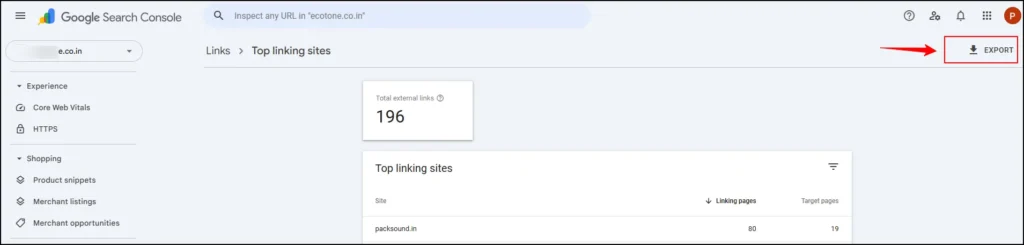
For any analysis beyond a quick visual scan, export your GSC backlink data for spreadsheet work.
How to export:
- From the Links report, click “More” under any sub-report (Top linked pages, Top linking sites, or Top linking text) to see the full dataset
- Click the download icon (top right) to export as CSV
- Alternatively, on the main Links page, click the three-dot menu next to each section and select “Download latest links” for a full raw export including specific link URLs and dates
What to do with the exported data:
- Create a master backlink spreadsheet with three tabs: Linking Domains, Linked Pages, Anchor Text
- Cross-reference the Linking Domains tab with a third-party tool (Ahrefs or Semrush) to add authority scores and traffic estimates to each domain
- Sort by linking domains and identify the top 20 most-linked-to pages — these are your content priorities
- Review the anchor text tab for over-optimization patterns
Note on data freshness: GSC backlink data is not real-time. It typically lags by several days to two weeks. Newly acquired links may not appear in the report immediately, and recently removed links may persist in the report for some time after removal.
Method 2: How to Find Backlinks in Google Analytics (GA4)
Google Analytics 4 does not show you all backlinks — only the ones that are actively sending traffic to your site. That limitation is actually a strength: every link appearing in GA4 referral data is a link that real users are clicking.
GA4 reveals which backlinks are generating behavior, not just authority signals.
Step-by-Step: Checking Backlinks via Referral Traffic in GA4
Step 1: Go to analytics.google.com and sign in. Select your GA4 property from the top left dropdown.
Step 2: In the left sidebar, navigate to Reports → Acquisition → Traffic Acquisition.
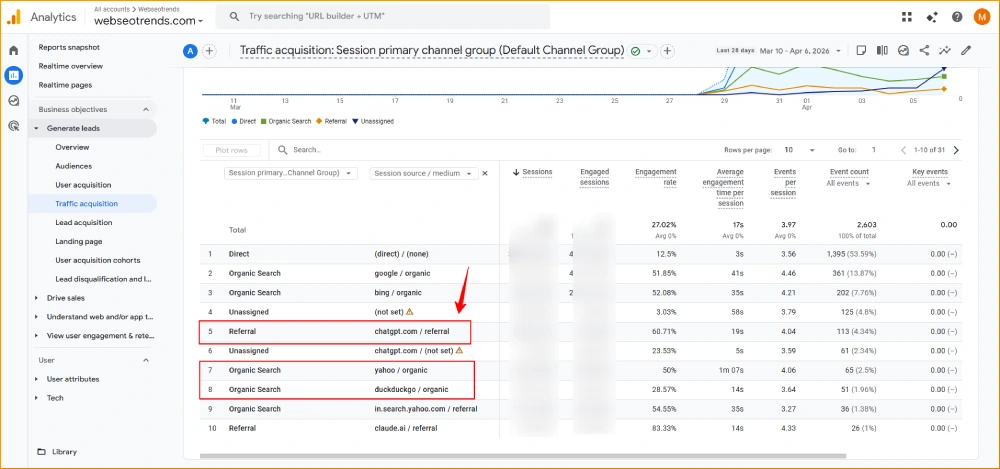
Step 3: The report defaults to showing all traffic channels. Look in the “Session default channel group” dimension column and find the row labeled “Referral”. Click directly on the word “Referral” to filter the entire report for referral traffic only.
Step 4: You will now see a list of referring domains — these are external websites sending traffic to your site via backlinks. The default view shows sessions, but add columns for: Engagement rate, Average session duration, and Conversions (if you have goals set up).
Step 5: Click any referring domain to drill down. This reveals which specific pages on your site the referral traffic is landing on — telling you exactly which of your pages are earning traffic-driving backlinks from each external source.
Step 6: Export this data monthly. Create a tracking spreadsheet comparing which referral domains appear each month — new domains signal successful link-building; disappeared domains signal links worth reclaiming.
What GA4 Backlink Data Tells You That GSC Cannot
| Insight | Google Search Console | Google Analytics 4 |
|---|---|---|
| All backlinks Google knows about | ✅ Yes | ❌ No — only traffic-driving links |
| Which backlinks send real users | ❌ No | ✅ Yes |
| Quality of traffic from each link | ❌ No | ✅ Yes (engagement rate, session duration) |
| Conversion value of each referring domain | ❌ No | ✅ Yes (if goals are configured) |
| Historical trend by referring domain | ❌ Limited | ✅ Full date-range filtering |
The strategic insight GA4 unlocks: A link from a site with DA 40 that sends 500 targeted visitors per month who convert at 3% is more valuable to your business than a DA 70 link from a site that sends no traffic at all. GA4 surfaces this distinction — GSC cannot.
Use GA4 referral data to identify your most valuable link partners (high traffic + high engagement) and prioritize maintaining and deepening those relationships. These are the sites where additional content, guest contributions, or partnership opportunities will generate the best return.
Method 3: Google Search Operators to Find Backlinks and Opportunities
Google’s search operators are query modifiers that unlock functionality beyond standard keyword searches. For backlink research, they serve two purposes: checking what Google knows about links to a specific site, and discovering new link-building opportunities.
The link: Operator — Google’s Native Backlink Search {#link-operator}
link:yourwebsite.com
This is Google’s built-in backlink search tool. Enter it directly into Google’s search bar and Google will return a sample of pages it knows link to the specified domain.
Important caveat: Google deprecated the link: operator as a comprehensive backlink checker in 2016 and confirmed it only returns a small, non-representative subset of known links. It is not a replacement for Google Search Console or third-party tools.
Where it remains useful:
- Quick sanity check — does a specific, important site appear in the results?
- Fast competitor overview — running
link:competitor.comsurfaces some high-profile linking sites - Verification — confirming that a specific link you built has been noticed by Google
Finding backlinks to a specific page (not just a domain):
link:competitor.com/specific-page/
This narrows the operator to a single URL — useful for checking which sites link to a competitor’s ranking page specifically, rather than their domain broadly.
Advanced Search Operators to Find Backlink Opportunities {#advanced-operators}
This is where Google search operators deliver their real value: finding sites that already link to content like yours, so you know exactly where to focus your outreach.
1. Finding Guest Post Opportunities
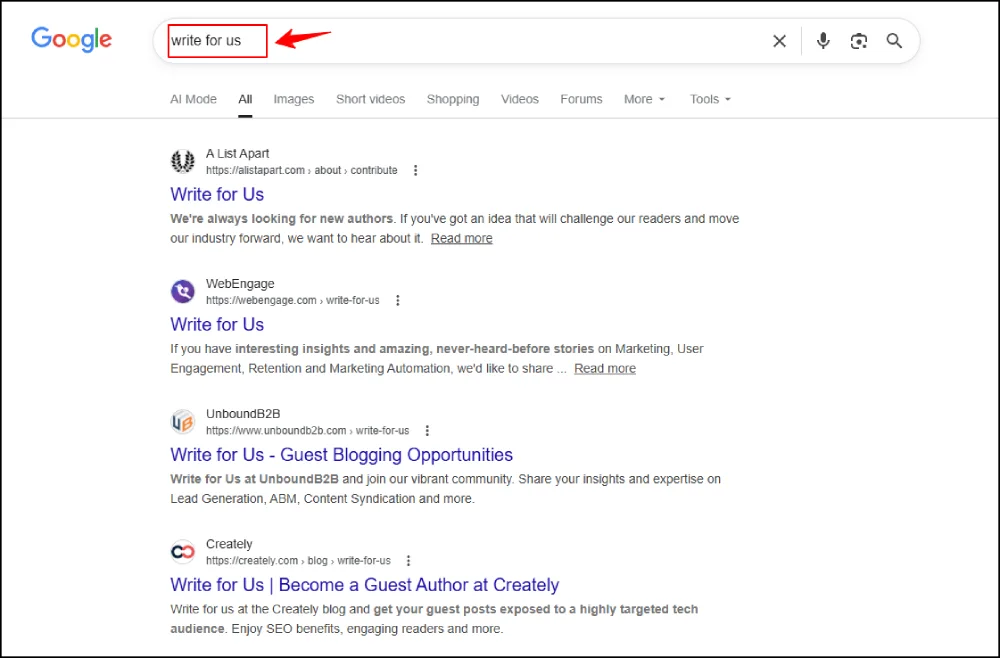
Sites that accept guest contributions often announce this on dedicated pages. These pages represent confirmed link-building opportunities because the site is explicitly inviting external contributors.
“write for us” “your niche keyword”
intitle:”write for us” “your niche keyword”
inurl:/guest-post/ “your niche keyword”
“your niche” “submit a guest post”
“your niche” “contributor guidelines”
“your niche” “become a contributor”
“your niche” “accepting guest posts”
Replace "your niche keyword" with a term describing your industry (e.g., “digital marketing,” “SaaS,” “personal finance,” “e-commerce”).
2. Finding Resource Page Link Opportunities
Resource pages are curated lists of recommended tools, articles, or websites. Sites that maintain them have already demonstrated a willingness to link to external content — your job is to give them a reason to add yours.
inurl:resources “your niche keyword”
intitle:”resources” “your niche keyword”
“your niche” “helpful resources”
“your niche” “useful links”
“your niche” “recommended tools”
“your niche” “top resources” inurl:links
3. Finding Unlinked Brand Mentions
Every time someone mentions your brand name without linking to you, that is a missed backlink. This operator surfaces all mentions of your brand name on sites that are not your own domain — each is a warm outreach opportunity.
"your brand name" -site:yourdomain.com
"your brand name" -site:yourdomain.com -site:twitter.com -site:facebook.com
Contact each site and ask them to convert the mention into a linked citation. Conversion rates for this tactic are significantly higher than cold link prospecting because the site is already familiar with your brand.
4. Finding Broken Link Opportunities
Broken link building involves finding pages in your niche that link to dead pages, then offering your content as a replacement. It benefits both parties: the site owner fixes a broken user experience, and you earn a relevant backlink.
"your niche keyword" inurl:resources "404"
"your niche keyword" "page not found" -site:yourdomain.com
Use a Chrome extension like Check My Links to scan resource pages in your niche for broken links at scale.
5. Using Google to Search for Backlinks to a Specific Website
To find backlinks to any website using only Google (without third-party tools), combine the link: operator with qualitative filtering:
link:competitor.com -site:competitor.com
This removes the competitor’s own pages from results, showing only external sites linking to them.
link:competitor.com/best-article/ site:edu
This narrows to .edu domains linking to a specific competitor page — highly authoritative link sources.
How to Find Competitor Backlinks Using Google Search
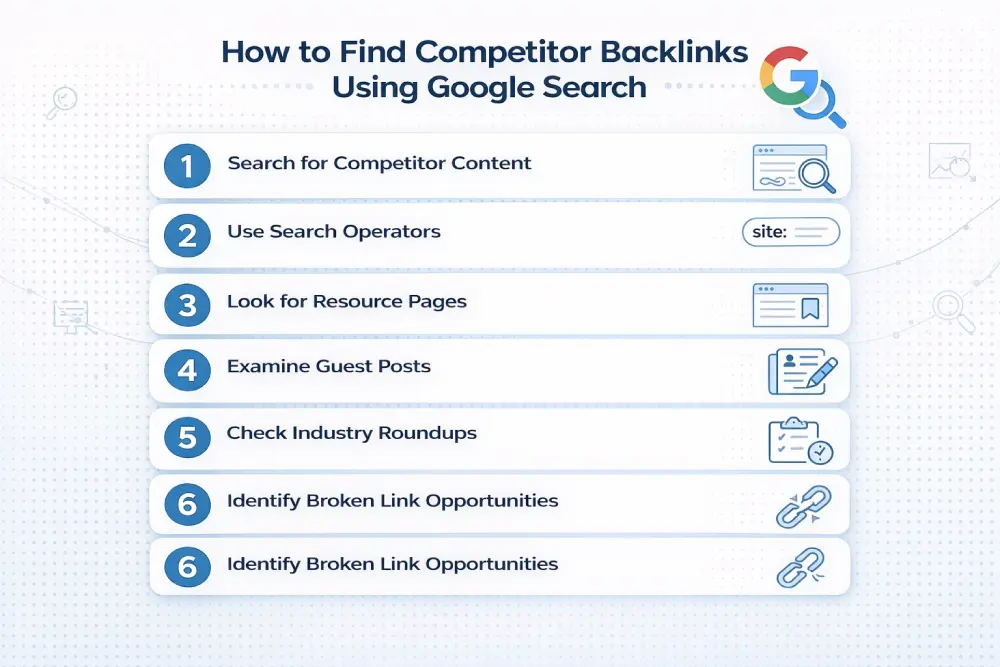
The most actionable use of Google search operators for backlink research is competitive intelligence.
Step 1: Identify the specific page your competitor has ranking for your target keyword. Copy the exact URL.
Step 2: Run:
link:competitor.com/their-ranking-page/
Step 3: Review the sites Google surfaces. Each is a domain that has already linked to competing content — making them logical outreach targets for similar content on your site.
Step 4: For each domain you find, run a more specific check:
site:linkingdomain.com "competitor brand name"
This reveals all pages on the linking domain that mention the competitor — giving you context for the type of content they link to and how they typically frame recommendations.
Limitation: Google’s link: operator only shows a sample. For comprehensive competitor backlink analysis, a third-party tool like Ahrefs or Semrush is required. Use Google operators for rapid initial research, then use tools for systematic gap analysis.
Method 4: How to Check Backlinks Using Third-Party Backlink Checker Tools
Google’s tools show you what Google has indexed. Third-party tools show you the full competitive landscape — historical trends, authority scores for every linking domain, and cross-competitor gap analysis that Google’s tools cannot provide.
Ahrefs — Best for Depth and Competitive Research
Ahrefs maintains the largest third-party backlink database and is the industry standard for comprehensive link analysis. When you need to find all backlinks to a website — yours or a competitor’s — Ahrefs delivers the most complete picture.
Key features for backlink analysis:
- Site Explorer: Enter any domain or URL to see total backlinks, referring domains, Domain Rating (DR), and URL Rating (UR) — with full historical trend graphs
- Backlinks report: Every individual link with: linking page URL, DR of linking domain, anchor text used, link type (dofollow/nofollow), and first/last seen dates
- New and Lost links: Filter for links acquired or removed within any date range — essential for monitoring link-building campaign performance
- Referring domains trend: A month-by-month graph of referring domain growth — reveals whether your profile is compounding or declining
- Anchor text report: Your complete anchor text distribution with exact counts per phrase
- Link Intersect: Enter your domain and multiple competitors — surfaces domains linking to competitors but not to you (your priority outreach list)
- Best by links: Which pages on any domain attract the most external links — reveals their most linkable content format
Best for: Agencies, in-house SEO teams, and anyone running systematic link-building campaigns who needs the most complete, up-to-date backlink database available.
Semrush — Best All-in-One Backlink Checker
Semrush combines backlink analysis with keyword research, technical auditing, and rank tracking — making it the preferred choice for teams that want a single platform rather than multiple specialist tools.
Key features for backlink analysis:
- Backlink Analytics: Total backlinks, referring domains, and Authority Score (Semrush’s proprietary quality metric) for any domain
- Backlink Audit tool: Assigns a Toxic Score to each linking domain based on 45+ toxicity indicators — the fastest way to find bad backlinks
- Backlink Gap: Enter your domain and up to four competitors — surfaces domains that link to competitors but not to you
- Link Building Tool: Combines gap analysis with outreach management in one workflow
- Bulk URL analysis: Evaluate up to 200 URLs simultaneously for backlink profiles
Best for: SEOs who want one tool for all SEO tasks, and teams who need integrated link prospecting and outreach management.
Moz Link Explorer — Best for DA/PA Metrics
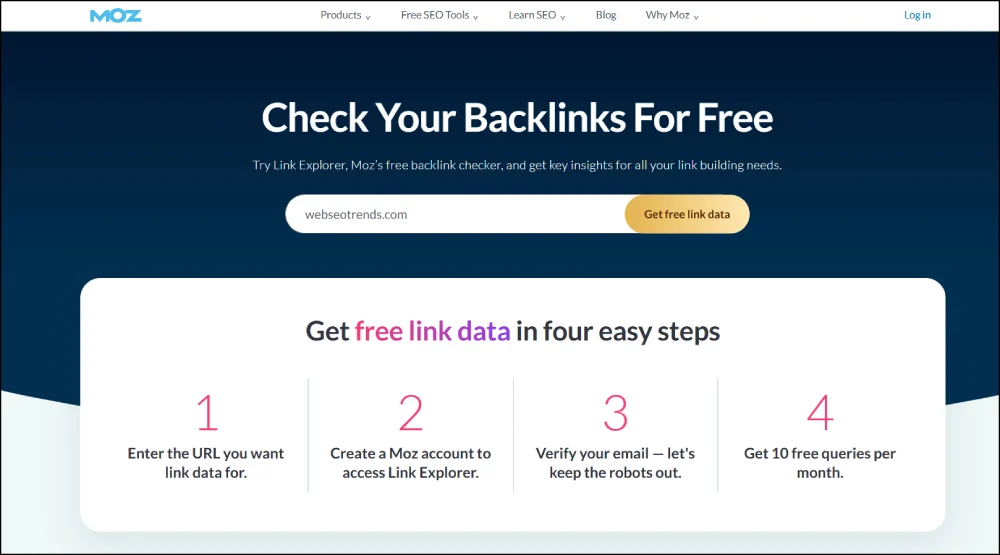
Moz’s Domain Authority (DA) and Page Authority (PA) scores are the most widely recognized link quality metrics in the SEO industry — used even outside Moz’s own ecosystem as a common language for evaluating link quality.
Key features:
- Inbound Links report: All linking domains with DA and PA scores for each
- Spam Score: Moz’s proprietary metric for identifying potentially harmful links
- Top pages by links: Your best-linked pages sorted by linking domain count
- Link Opportunities: Competitive gap analysis for finding prospecting targets
- Free tier: 10 queries per month — sufficient for checking a single site’s profile or a handful of competitor domains
Best for: Quick DA/PA lookups, teams already using Moz’s broader SEO suite, and smaller sites wanting free access to basic competitive link data.
Free Backlink Checker Tools Worth Using
If you are not ready to invest in a paid subscription, these free options provide genuine value:
- Google Search Console (free, unlimited): The most important free backlink tool — shows Google’s own view of your backlink profile. Already covered in detail above. Always your first source.
- Ahrefs Free Backlink Checker (free, limited): Available at ahrefs.com/backlink-checker. Shows the top 100 backlinks for any domain without a subscription. Sufficient for quick competitive research or checking a handful of domains.
- Moz Free Link Explorer (10 free queries/month) Provides DA, PA, Spam Score, and top linking domains for any site within the free monthly limit. Useful for spot-checking.
- Ubersuggest (free tier with daily limits): Neil Patel’s tool includes a backlink checker showing referring domains, DA, and anchor text. The free tier provides limited daily queries — enough for small sites managing their own SEO.
- Check My Links (free Chrome extension): Not a backlink checker per se, but essential for broken link building prospecting — scans any web page for broken links in seconds, highlighting them in red. Powerful for finding broken link building opportunities on competitor resource pages.
Recommended stack for budget-conscious projects: Use Google Search Console (free, unlimited) for your own backlink profile. Use Ahrefs’ free backlink checker for competitive research. Use Moz’s free tier for DA/PA spot-checks. Upgrade to a paid tool when you are running active link-building campaigns where the competitive intelligence justifies the cost.
How to Check Competitors’ Backlinks and Close the Gap
Finding your own backlinks is reactive intelligence. Finding your competitors’ backlinks is strategic. A systematic competitor backlink analysis answers the most important question in link building: which links do I need to build next to outrank the pages currently above me?
Step-by-Step Competitor Backlink Analysis
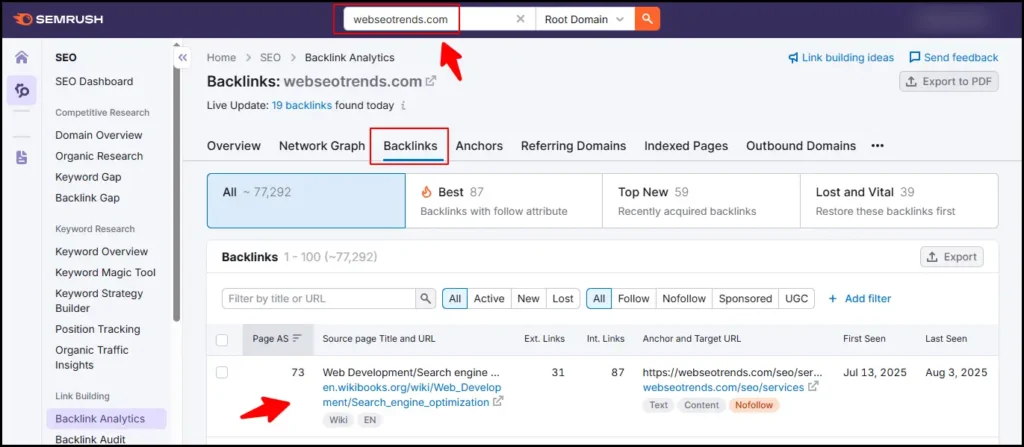
Step 1: Identify Your Real Competitors for Backlink Purposes — Your “competitors” for this analysis are not your business competitors — they are the specific pages currently ranking in positions 1–5 for your target keyword. Open an incognito browser window, search your primary keyword, and record the exact URLs of the top 5 organic results. These are the pages whose backlink profiles you need to outperform.
Step 2: Pull Their Backlink Profiles — For each competing URL (use the specific page URL, not just the homepage domain):
- Enter the URL into Ahrefs Site Explorer or Semrush Backlink Analytics
- Filter results: Dofollow only, one link per referring domain (removes noise from multiple links within a single domain)
- Sort by Domain Rating or Authority Score descending
- Export the full referring domain list as a CSV
Repeat for all 5 competing pages and save each export.
Step 3: Find the Backlink Gap: The backlink gap is the universe of domains that have already demonstrated willingness to link to content on this topic — but have not yet linked to your specific page or domain.
- In Ahrefs: Link Intersect tool → Enter your domain and your competitors’ domains → Ahrefs surfaces domains linking to 2+ competitors but not to you.
- In Semrush: Backlink Gap tool → Same process, slightly different interface.
Step 4: Qualify Each Gap Domain For every domain in the gap, evaluate:
- Is it genuinely relevant to your niche and content?
- Does it have real organic traffic (not just a high DA number)?
- Is the link pattern editorial (within article content) or structured (directory, footer)?
- Is this a realistic target — could you earn a link through content, outreach, or a contribution?
Remove: irrelevant domains, sites with no real traffic, obvious PBNs, and link farms.
Step 5: Categorize Gap Domains by Acquisition Method Sort your qualified targets into buckets:
- Guest post — sites that have published guest content linking to competitors
- Resource page — curated pages that listed competitor content; reach out with yours
- Digital PR — media sites that covered competitors editorially; create a data story or expert piece for them
- Directory/association — structured listings where competitors appear; submit your own
- Unlinked mention — sites that mentioned competitors but did not link; you may be able to earn a similar mention
Each category requires a different outreach angle and different content assets.
Building a Backlink Gap Analysis Spreadsheet
Turn your research into an actionable, prioritized list:
| Domain | DA/DR | Monthly Traffic (est.) | Niche Relevance (1–5) | Link Type | Competitors Linking | Acquisition Method | Priority Score |
|---|---|---|---|---|---|---|---|
| industry-blog.com | 58 | 45,000 | 5 | Guest post | 3 of 5 | Pitch article | 290 |
| trade-magazine.com | 74 | 120,000 | 5 | Editorial | 4 of 5 | Digital PR | 370 |
| niche-directory.org | 42 | 8,000 | 4 | Directory | 5 of 5 | Submit listing | 168 |
Priority Score formula: (DA × Relevance) + (Traffic / 1000) — sorts your list by the combination of authority, relevance, and real audience reach.
Work from highest to lowest Priority Score. This ensures you invest outreach effort where the authority and relevance payoff is greatest.
For a systematic approach to acting on this analysis — including outreach templates, link acquisition velocity targets, and monthly monitoring processes — the backlinks management guide covers a full 8-year tested framework for scaling from competitor research to campaign execution.
How to Check Backlinks Manually Without Tools
If you need to check whether a specific backlink exists on a specific page — without any tools — here is how to do it manually.
Method 1: Direct page inspection
Navigate to the page you believe contains a backlink to your site. Use your browser’s Find function (Ctrl+F / Cmd+F) and search for your domain name or brand. If the page contains a link to your site, this will highlight it.
Method 2: View page source
Right-click on the page and select “View Page Source.” Use Ctrl+F to search for your domain name within the raw HTML. If a hyperlink exists, you will find it in an <a href="..."> tag.
Method 3: Use Google’s cache
If a page has been modified or you want to check what Google indexed at a specific point in time, use:
cache:linking-page-url.com/page
This shows Google’s cached version of the page and can reveal whether a link that has since been removed was present when Google last crawled it.
Method 4: Check a page for all outbound links (Chrome DevTools)
Open DevTools (F12 → Elements tab) and use Ctrl+F within the Elements panel to search for href="https://yourdomain. This will highlight every link pointing to your site within the page’s HTML — including links that may not be visually obvious (hidden links, image links without visible text).
When manual checking is useful: Manual backlink verification is most valuable after link-building outreach — confirming that a placed link is live, dofollow, and appears correctly before reporting it as a campaign success. For auditing your complete backlink profile, manual checking does not scale. Use Google Search Console and third-party tools for that.
How to Identify and Remove Toxic Backlinks
A complete backlink strategy requires not just building good links but ensuring that bad links are not silently undermining your rankings. Toxic backlinks can trigger Google’s algorithmic spam assessments, cause manual penalties, and suppress rankings even without an explicit notification in Google Search Console.
Regular auditing is the only way to catch these before they compound.
Signals That a Backlink Is Harmful
Site-level red flags:
- Zero or near-zero organic traffic (check in Ahrefs or Semrush traffic overview)
- The site links to dozens of unrelated niches from the same pages (classic link farm pattern)
- Domain is filled with AI-generated, spun, or meaningless content
- Site is in an entirely unrelated language with no topical connection to your domain
- Domain has been deindexed by Google (verify with
site:domain.comin Google Search — zero results = deindexed) - The domain is flagged for malware, phishing, or adult content
- The site exists primarily to sell links, with thin content and obvious commercial link placement patterns (private blog networks)
Link-level red flags:
- Exact-match keyword anchor text used in a high percentage of your inbound links — the most common manual penalty trigger
- Sitewide links: your URL appears in the footer or sidebar of hundreds or thousands of pages on a single domain
- Links embedded in obviously spun or AI-generated content that makes no contextual sense
- Sudden, unexplained velocity spikes — acquiring hundreds of new linking domains in a short window with no legitimate campaign to explain it
- Links from sites that were previously penalized or that share hosting with known spam networks
How to identify toxic links systematically:
In Google Search Console: Links report → Top linking sites. Look for domains you do not recognize. Check each manually using the tests above. Flag anything suspicious.
In Semrush: The Backlink Audit tool scores every linking domain with a “Toxic Score” based on 45+ indicators. Filter for “Toxic” and “Potentially Toxic” categories and review each flagged domain.
In Ahrefs: Filter referring domains by DR 0–5 and sort by number of links to your site descending. Low-DR domains sending multiple links are a common spam pattern. Cross-check each against traffic data (zero traffic + many links = potential spam).
A thorough backlink audit walks through the complete process of identifying, classifying, and responding to every type of harmful link — including how to prioritize which to disavow versus which to leave alone.
How to Disavow Bad Backlinks in Google Search Console
When you identify toxic backlinks you cannot get removed by contacting the site owner, Google’s Disavow Tool lets you tell Google to ignore those links when evaluating your site.
Step 1: Try to remove the link first Before disavowing, make a genuine attempt to contact the linking site’s webmaster and request link removal. Email the site owner, use a contact form, or reach the registrant through WHOIS data. Document your outreach attempt — Google’s guidance is that you should attempt removal before resorting to disavow.
Step 2: Build your disavow file Create a plain .txt file in this format:
# Disavow file — created April 2026
# Links identified as toxic in Q1 2026 backlink audit

# Entire domain disavow (use for obviously spammy sites)
domain:spamsite-example.com
domain:link-farm-network.net

# Specific URL disavow (use when only one page is problematic)
https://otherwiseok-site.com/spammy-directory-page/
Use domain: to disavow all links from an entire domain — preferred when the site is clearly a spam operation. Use individual URLs only when a specific page is the problem but the broader domain is a legitimate site.
Step 3: Submit via Google Search Console Go to Google’s Disavow Links page, select your property, and upload your .txt file.
Step 4: Maintain a version-controlled disavow history Save a copy of every disavow file submission with a date stamp and notes explaining why each domain or URL was disavowed. If you ever need to revisit the decision or recover from an overly aggressive disavow, you will need this history.
Critical rules:
- Do NOT disavow aggressively. Disavowing good links by mistake removes authority you have legitimately earned. When in doubt, leave a link alone.
- Only disavow links you are confident are manipulative or spammy. A low DA score alone is not sufficient reason to disavow.
- Disavow takes time to process — several weeks to months before Google recrawls affected pages. Do not expect immediate ranking changes.
What to Do With Your Backlink Data: Turning Findings Into Strategy
Data without action is just a report. Here are the three highest-ROI activities to run immediately after checking your backlinks.
Reclaim Lost Backlinks
In Ahrefs or Semrush, filter your backlinks report for Lost links — links that previously existed but have recently disappeared. This is one of the most underused tactics in link building, and it delivers a higher conversion rate than almost any cold outreach campaign.
Why links disappear:
- The linking page was deleted or significantly rewritten
- Your page moved URLs and the 301 redirect was not correctly set up
- The site owner removed the link during a content refresh
- The linking domain itself went offline or was restructured
For each lost link, diagnose and act:
Your page changed URL: Confirm the 301 redirect is in place. Then contact the linking site and ask them to update to the new URL. Most site owners will do this without friction — it takes 30 seconds and helps their user experience too.
The linking page was deleted: Check whether it was replaced with newer content. If so, reach out with the updated link and explain what you offer. If the page was genuinely removed, it is unlikely recoverable.
The link was removed editorially: Investigate why. If your content has become outdated, update it comprehensively and reach out to explain the improvements. Not all will re-add the link, but reclamation outreach to sites that previously linked to you converts at a meaningfully higher rate than first-contact outreach.
Replicate Competitor Links
Your competitor gap analysis has already identified the sites that link to your competitors but not to you. Now execute:
- For each domain in your gap list, identify why the competitor earned the link — guest post? Data study? Resource page submission? Press coverage?
- Create or identify an asset on your site that matches or exceeds the competitor’s content quality for that placement type
- Write a personalized outreach email. For resource pages: “I noticed you link to [competitor content] — I have a more comprehensive updated resource on the same topic your readers would find valuable.” For guest post sites: pitch a specific article idea tailored to the site’s content and audience.
- Follow up once after 7–10 days of no response, then move on
The highest-conversion targets in any gap analysis are resource pages and curated lists — sites that have already shown a pattern of linking to multiple sources on a topic, which means there is no reason they should not add yours.
Our PR link building guide covers the specific process for earning editorial links from media and industry publications — the highest-authority type in any competitor gap.
If you want to compare quality platforms for placing strategic backlinks, the best places to buy backlinks guide covers 17 tested options with honest evaluations of risk, quality, and ROI.
Build a Monthly Acquisition Plan
Your backlink data should feed a structured monthly plan with specific targets, link types, and velocity controls:
| Activity | Monthly Target | Expected Link Type | Priority |
|---|---|---|---|
| Digital PR outreach | 1–2 campaigns | Editorial (DA 60+) | Highest |
| Guest post pitches | 5–8 outreach emails | Guest post (DA 30–60) | High |
| Resource page outreach | 10–15 emails | Resource page | Medium |
| Unlinked mention reclamation | All current mentions | Editorial (varied DA) | High |
| Broken link outreach | 5–10 emails | Contextual replacement | Medium |
| Niche directory submissions | 2–5 new directories | Directory | Low |
Velocity management: Acquire links at a rate consistent with your domain’s current growth stage. Jumping from 2 new referring domains per month to 80 overnight looks unnatural even when the links are legitimate. Sustainable link growth of 5–20 new referring domains per month is typical for an active mid-size campaign.
How Often Should You Check Your Backlinks on Google?
The right cadence depends on how actively you are building links and how competitive your niche is.
Active link-building campaigns:
- Weekly: Verify that recently placed links are live, dofollow, and indexed — unindexed links pass no value. Check for newly lost links.
- Monthly: Full GSC Links review — new referring domains, anchor text distribution update, competitor profile snapshot
- Quarterly: Complete backlink audit — toxic link identification, disavow file review, full competitive gap update
Sites in maintenance mode:
- Monthly: GSC review for unexpected new or lost links; flag anything suspicious for follow-up
- Every 6 months: Full audit for toxic links and profile health benchmarking
New sites (under 6 months old):
- After every single outreach campaign: verify placements immediately
- Monthly: full GSC review and competitive gap update — your strategy evolves quickly at this stage, and early data informs which content formats are attracting links naturally
After a Google algorithm update: Always run a backlink audit following any broad core update or spam update. Algorithm updates sometimes change how Google weighs certain link patterns — what was neutral before may be flagged afterward, and vice versa.
Common Mistakes When Checking Backlinks
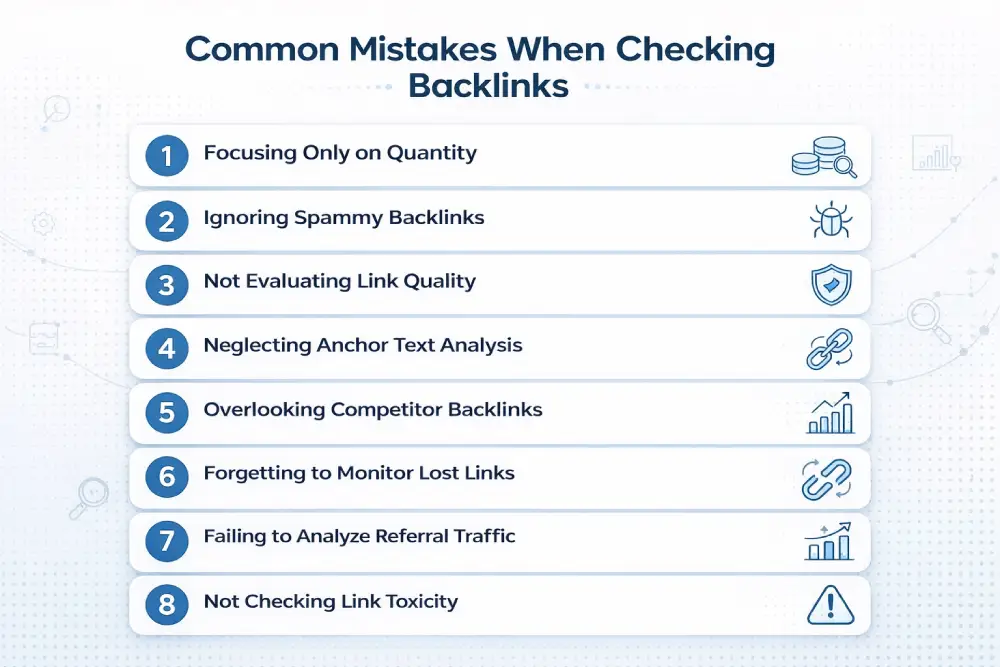
These are the errors that waste time and lead to wrong strategic conclusions.
1. Using Only One Tool: Every tool — including Google Search Console — shows a different subset of your full backlink picture. GSC is authoritative for your ranking impact; Ahrefs/Semrush are essential for competitive research. GA4 adds behavioral context. Using only one source means making decisions on incomplete data.
2. Confusing DA/DR Scores with Actual Quality: Domain Authority and Domain Rating are useful proxies — not definitive quality scores. A DA 60 site with no organic traffic and no topical relevance to your niche is less valuable than a DA 30 niche site with 40,000 engaged monthly readers in your exact category. Always evaluate traffic and relevance alongside authority metrics.
3. Panicking About Every Low-DA Link: Small local blogs, startup industry publications, and niche community sites often have modest DA scores but represent entirely legitimate, editorially placed backlinks. Mass-disavowing low-DA links is one of the most common self-inflicted SEO injuries. Low DA ≠ toxic. Evaluate context, not just the number.
4. Skipping the Anchor Text Report: The anchor text distribution is one of the most diagnostic metrics in your entire profile and one of the most commonly ignored. An over-optimized anchor text pattern — too many exact-match keywords — is a documented risk factor for ranking volatility. Catch it early in routine checks.
5. Running Audits Only After Rankings Drop: By the time a ranking drop sends you to investigate your backlink profile, harmful links have typically been building for months. Regular audits are preventive medicine. Reactive audits are emergency room visits.
6. Not Tracking Lost Links A common scenario: you build 25 new links in six months and are puzzled that rankings have barely moved. The answer is often that 20 links were lost in the same period. Tracking lost links in parallel with acquired links gives you your actual net referring domain growth — the metric that predicts ranking momentum.
7. Misunderstanding the GSC vs. Third-Party Tool Difference: GSC showing 400 referring domains while Ahrefs shows 1,200 is not a discrepancy to troubleshoot — it is expected and normal. These tools measure different things. Stop trying to reconcile the numbers and start using each tool for what it does best.
Conclusion
Knowing how to search backlinks on Google — through Search Console, Google Analytics, and search operators — is the foundational skill that makes every other SEO decision more intelligent. It tells you what you already have, what you are losing, what your competitors have built, and where your next backlinks should come from.
The complete backlink intelligence workflow:
- Google Search Console → Your official, Google-verified backlink data. Check the Links report for top linked pages, linking sites, and anchor text distribution. Export monthly.
- Google Analytics 4 → Which backlinks drive real user traffic and behavior. Check referral acquisition monthly and track which sources send your best-converting visitors.
- Google Search Operators → Find link-building opportunities in your niche and check competitor backlinks without tools. Use
link:, unlinked mention searches, and guest post/resource page operators. - Third-party tools (Ahrefs/Semrush) → Competitive gap analysis, lost link tracking, toxic link identification, and historical trend analysis. The layer that turns your Google data into a complete strategic picture.
- Regular audits → Quarterly minimum. Identify and disavow toxic links. Reclaim lost links. Update your gap analysis. Adjust anchor text distribution if over-optimized.
The SEOs and businesses consistently winning in search are not the ones with the most backlinks. They are the ones who understand their backlink profile deeply, monitor it systematically, and build with precision rather than guesswork.
🔑 Key Takeaways:
- Google Search Console is the most accurate free tool to check backlinks in Google — it shows exactly what Googlebot has evaluated
- GSC and third-party tool numbers differ by design; use each for its specific purpose
- Google Analytics 4 reveals which backlinks drive real traffic and conversions — data GSC cannot provide
- Google search operators (
link:,"write for us",inurl:resources, unlinked mention searches) are powerful free tools for both checking and discovering backlinks- A healthy backlink profile requires domain diversity, topical relevance, varied anchor text, and a natural dofollow/nofollow ratio
- Check backlinks monthly; run full audits quarterly; always audit after major Google algorithm updates
- Toxic backlinks should be identified through systematic audits and disavowed via Google Search Console only when removal is not possible
FAQ: People Also Ask
How do I search for backlinks on Google for free?
The best free method is Google Search Console. Go to search.google.com/search-console, navigate to the Links report in the left sidebar, and you will see all external links Google has found pointing to your site — broken down by linking domain, linked page, and anchor text. This is the most accurate free source because it reflects Google’s own backlink data. For additional free data, use Ahrefs’ free backlink checker (top 100 links per any domain) and Moz Link Explorer (10 free queries per month).
How do I check backlinks in Google Search Console?
Sign in to Google Search Console → select your property → click “Links” in the left sidebar. The Links report shows: Top linked pages (your pages with the most backlinks), Top linking sites (domains linking to you), and Top linking text (anchor text distribution). Click “More” under any section to see the complete dataset. Click “Export” to download as CSV for deeper analysis. For a step-by-step walkthrough of every section, see Method 1 in this guide.
What is the difference between Google Search Console backlinks and Ahrefs data?
Google Search Console shows the backlinks Googlebot has actually found and associated with your site — this is the data directly influencing your rankings. Ahrefs uses its own independent crawler and database, which includes links Google may not have evaluated, links from very low-authority pages, and links Google has chosen not to weight. GSC numbers are always lower but represent the most accurate picture of your SEO-relevant link profile. Use GSC for ranking impact; use Ahrefs/Semrush for competitive analysis.
How can I find backlinks to my website using Google search operators?
Use link:yourdomain.com directly in Google search — this shows a sample of pages Google knows link to your site. For finding link-building opportunities, use: "write for us" "your niche" (guest post sites), inurl:resources "your niche" (resource pages), and "your brand name" -site:yourdomain.com (unlinked mentions to convert into backlinks). See the full operators section in this guide for copy-paste templates for every use case.
How do I check a competitor’s backlinks on Google?
Run link:competitor.com in Google search for a limited view of their backlinks. For comprehensive competitor backlink analysis, use Ahrefs’ free backlink checker (enter the competitor’s URL to see their top 100 links without a subscription), or Semrush’s Backlink Analytics. The most strategic use is the Link Intersect or Backlink Gap tool in either platform — identifying domains that link to competitors but not to you, giving you your exact outreach target list.
How do I find backlinks to a website using Google Analytics?
In Google Analytics 4, go to Reports → Acquisition → Traffic Acquisition. Find the “Referral” row and click on it to filter for referral traffic. The resulting report shows all external websites sending traffic to your site via backlinks, with engagement metrics (session duration, pages per session, conversions) for each. This does not show all backlinks — only those driving real user traffic. For all-backlinks data, use Google Search Console.
How do I check backlinks manually without tools?
For checking a specific link on a specific page: navigate to the page in your browser, press Ctrl+F, and search for your domain name. If a link exists, it will be highlighted. To check the raw HTML: right-click → View Page Source → Ctrl+F to search for your domain in the HTML. For a quick verification that a link is dofollow: right-click the link in Chrome DevTools → Copy → Copy outerHTML, then check whether rel="nofollow" appears in the tag. Manual checking does not scale for full audits; use Google Search Console for systematic backlink analysis.
How do I check if backlinks are harmful to my site?
In Google Search Console, review your Top linking sites list and flag any domains you do not recognize. Check each suspicious domain by: searching site:domain.com in Google (deindexed = red flag), reviewing the site for legitimate content and real traffic (use Ahrefs or Semrush traffic overview), and checking whether it links to dozens of unrelated niches from the same pages (link farm pattern). For automated toxic link detection, Semrush’s Backlink Audit assigns a Toxic Score to every linking domain. See the full toxic backlink identification section for detailed criteria and the disavow process.
How long does it take for new backlinks to appear in Google Search Console?
GSC backlink data typically lags by several days to two weeks from when Googlebot actually crawls the linking page. Newly built or earned links will not appear in the report immediately. If a link has not appeared in GSC after three weeks and you have confirmed the link is live and the linking page is indexed (check with site:linkingdomain.com/page in Google), it may be that Google has not yet recrawled that specific page. Use Google Search Console’s URL Inspection tool on the linking page to see its last crawl date and request a recrawl if needed.
Ready to go beyond checking backlinks and start building a systematic acquisition strategy? Get a free backlink audit from Webseotrends — we will analyze your full backlink profile, identify toxic links, map your competitor gaps, and deliver a prioritized action plan within 24 hours.
This guide is updated for 2026 and reflects current Google Search Console functionality, Google Analytics 4 interface, and SEO best practices as of April 2026.
